DJI Assistant 2 is free desktop software for Windows and macOS that updates and rolls back firmware, calibrates sensors, and exports flight logs over a USB connection. Most pilots need the Consumer Drones Series version, which covers the Mini, Air, Mavic, Neo, Flip, and Avata lines.
It ships as separate apps for different product lines, and the wrong one will not recognize your drone. Use the version finder below to get the exact download for your model, then read on for setup, firmware updates, calibration, and troubleshooting.
Free tool
DJI Assistant 2 Version Finder
Pick your drone to get the exact version and the official DJI download link.
DJI maintains three separate Assistant 2 downloads on its official downloads page. They share a similar interface but recognize different hardware:
DJI Assistant 2 (Consumer Drones): Mini series, Air series, Mavic series, Avata, Neo. This is the correct version for the vast majority of consumers.
DJI Assistant 2 for Phantom Series: Phantom 3 and Phantom 4 (all variants). Only needed if you own a Phantom.
DJI Assistant 2 for Enterprise: Matrice, Agras, and other commercial/industrial platforms. Not relevant for consumer use.
Download the Consumer Drones version unless you own a Phantom or a Matrice. That single version covers everything from the Mini 2 to the Mavic 4 Pro.
Note: The current DJI Assistant 2 (Consumer Drones Series) version is V2.1.40, released April 2026. DJI also publishes separate builds for the original DJI FPV drone and the Power Series, so always match the download to your exact device. Use the DJI Assistant 2 Version Finder above to confirm the correct download for your model.
How to Download DJI Assistant 2 for Windows and Mac
DJI Assistant 2 is a free download for both Windows and Mac, straight from DJI's official site. It supports Windows 7, 10, and 11 (64-bit) and macOS 10.14 (Mojave) and later. The macOS version requires you to grant the application Accessibility permissions in System Settings > Privacy and Security after the first launch. On newer Macs running Ventura or Sonoma, you may also need to allow the DJI USB driver under Security settings before the drone is recognized.
How to Connect Your DJI Drone
Power on the drone and place it on a flat surface
Connect the drone to your computer via USB-C cable (the battery must be inserted and the drone must be powered on)
Launch DJI Assistant 2
The drone model should appear in the left panel within 10-15 seconds
Click the drone name to enter the management interface
Connect the drone via USB-C while it is powered on. The battery must be inserted for Assistant 2 to recognize the device.
DJI Assistant 2 vs DJI Fly: Which Do You Need?
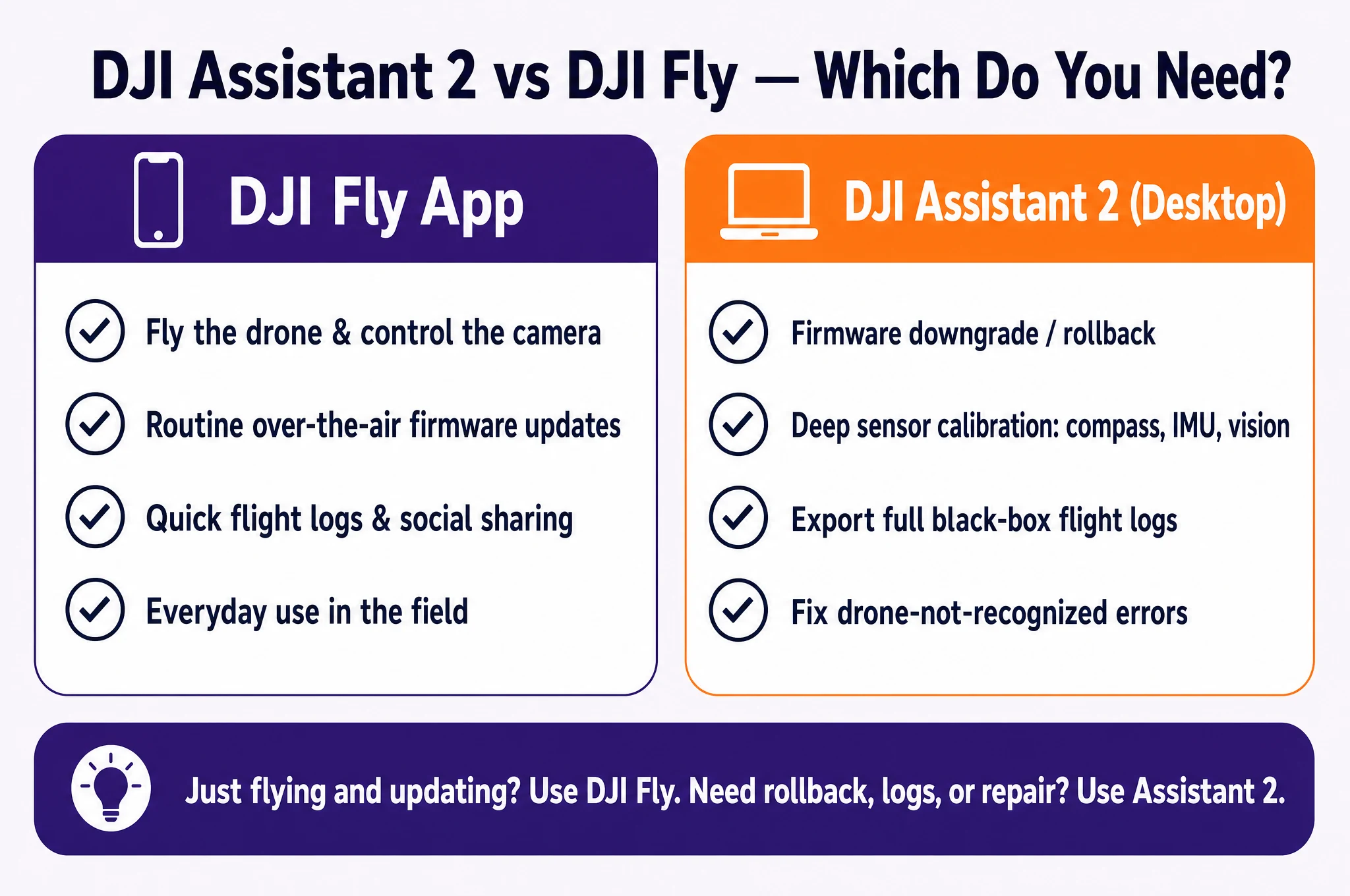
DJI Assistant 2 and the DJI Fly app overlap, but they are built for different jobs. DJI Fly lives on your phone and handles flying and routine updates. DJI Assistant 2 lives on your computer and unlocks the deeper maintenance tasks the app hides. Here is how they split:
Task
DJI Fly (phone app)
DJI Assistant 2 (desktop)
Fly the drone and control the camera
Yes
No
Routine over-the-air firmware updates
Yes
Yes, more reliable via USB
Firmware downgrade / rollback
No
Yes
Deep sensor calibration (compass, IMU, vision)
Basic
Yes, with diagnostics
Export full black-box flight logs
No
Yes
Fix drone-not-recognized and driver issues
No
Yes
Just flying and keeping firmware current? DJI Fly is enough. Need to roll back firmware, export black-box logs, run deep calibration, or troubleshoot a problem the app cannot fix? That is when you need DJI Assistant 2.
Quick visual comparison
When to use DJI Fly versus DJI Assistant 2, at a glance.
DJI Assistant 2 Firmware Management
How to Update DJI Drone Firmware via DJI Assistant 2
Firmware updates through DJI Assistant 2 are more reliable than OTA updates through the DJI Fly app, especially for major version changes. The process downloads the firmware file to your computer first, then transfers it via USB. This avoids update failures caused by weak Wi-Fi or a dropped phone connection mid-update.
To update firmware:
Connect your drone as described above
Click the drone name in the left panel
Go to the Firmware Update tab
If an update is available, click Download to cache it locally
Click Update to flash the firmware to the drone
Wait for the drone to restart (do not disconnect during this process)
Tip: Always ensure your drone battery is above 30% before starting a firmware update. If power is lost during a flash, the drone can be left in an unbootable state requiring a factory service reset.
Firmware Rollback: How to Downgrade DJI Firmware
DJI Assistant 2 also supports rolling back to a previous firmware version, though DJI makes this less obvious than updating. In the Firmware Update tab, look for a link to "Firmware Version History" or "Previous Versions." Selecting an older version and clicking update will downgrade the drone to that firmware.
Rollbacks are useful if a new firmware introduces a bug that affects your workflow. DJI's firmware release notes (available on the DJI download pages) describe what each version changes. Common reasons to rollback include changes to image processing, flight behavior adjustments, or transmission system changes that affect range in specific environments.
Note: After a firmware rollback, DJI Fly app may prompt you to update again. You can dismiss this prompt. The app will still function normally with an older firmware version, though new app features that depend on newer firmware may not work.
Updating Remote Controller Firmware
DJI Assistant 2 also handles firmware updates for DJI remote controllers, not just the drone itself. Connect the RC-N1, RC2, or RC Pro controller via USB-C while the drone is also connected. Assistant 2 will display the controller as a separate device alongside the drone in the left panel. Update the controller firmware through the same Firmware Update tab. This is particularly useful when a new drone firmware version requires a matching controller update that didn't complete properly over the air.
DJI Assistant 2 Sensor Calibration Features
Compass Calibration via DJI Assistant 2
The compass calibration in DJI Assistant 2 is functionally the same as the in-app compass calibration in DJI Fly: you rotate the drone on two axes to map the magnetic field. The advantage of doing it through Assistant 2 is the diagnostic readout. The software displays compass sensor values in real time, letting you see if a specific axis has interference issues that the simple pass/fail result in DJI Fly doesn't reveal.
IMU Calibration
The IMU calibration process requires placing the drone on perfectly level surfaces in five specific orientations. DJI Assistant 2 walks through each step with visual guidance. This process re-zeros the accelerometer and gyroscope baselines and should be done after any significant physical impact or if you notice persistent altitude drift or unstable hover.
IMU calibration takes approximately 5-8 minutes to complete. The drone must remain stationary during each measurement phase. Performing this on a marble countertop or a known-level surface gives better results than a wooden desk that may have flex.
Vision Sensor Calibration
The vision system calibration (covered in the Sensor Calibration section of Assistant 2) recalibrates the stereo cameras used for obstacle avoidance. This is required after physical impacts near the cameras, after replacing sensors, or if you see persistent "Vision system error" warnings in DJI Fly. The process involves pointing the drone's nose at a patterned calibration target at a specified distance and clicking through the software prompts.
DJI Assistant 2 gives access to compass, IMU, and vision sensor calibration from a single interface.
DJI Assistant 2 Flight Log Export and Analysis
How to Export DJI Flight Logs
DJI stores detailed flight logs in the drone's onboard memory. These are separate from the logs synced to the DJI Fly app and contain raw sensor data including GPS coordinates, altitude, motor currents, battery cell voltages, flight mode changes, and stick inputs at approximately 10 Hz. Accessing this data requires DJI Assistant 2.
To export flight logs:
Connect the drone and click its name in Assistant 2
Navigate to the Logs section (sometimes labeled "Data Export" depending on version)
Select the log files you want to export (they are listed by timestamp)
Click Export and choose a save location
The exported files are typically in .csv or .dat format
Reading Exported Flight Data
The raw .dat log files require a third-party tool to parse. AirData UAV is the most widely used option: it accepts DJI log files and produces visual flight path maps, battery health reports, altitude graphs, and motor load analysis. This is the standard tool used by professional operators to document compliance, investigate incidents, and track fleet battery health over time.
DJI flight logs contain the black box data for your drone. If you've ever had an unexplained incident or flyaway, the exported log file is the first thing a DJI support engineer will ask for.
DJI Assistant 2 Flight Parameters
Some DJI drone models allow limited parameter editing through Assistant 2. This typically includes maximum speed limits, altitude limits (beyond the standard 120m/400ft app ceiling for operators with elevated authorizations), and controller response curves. Not all consumer models expose these settings. Check the Parameters tab after connecting your specific drone to see what is available for your model.
DJI Assistant 2 Not Working: How to Fix Connection Problems
Drone Not Recognized by DJI Assistant 2
The most common issue with DJI Assistant 2 is the drone not appearing in the left panel after connection. Work through this checklist:
Confirm you are using a data-capable USB-C cable, not a charge-only cable. Many USB-C cables carry power only. Try the cable that came with the drone.
Confirm the drone is powered on with the battery inserted. Assistant 2 cannot communicate with an unpowered drone.
Try a different USB port. USB 3.0 ports (blue) sometimes have compatibility issues; try a USB 2.0 port instead.
Reinstall the USB driver. On Windows, check Device Manager for yellow warning icons on DJI devices and update the driver manually.
On macOS, go to System Settings > Privacy and Security and look for a blocked kernel extension from DJI. Allow it and restart.
If the drone doesn't appear in the left panel, a charge-only USB cable or a missing macOS driver permission are the two most common causes.
DJI Assistant 2 Crashing or Freezing
If Assistant 2 crashes during a firmware update, do not power off the drone. Leave the drone connected, restart the application, and attempt to resume the update. DJI builds in a recovery mode that allows interrupted firmware updates to be resumed. If the application keeps freezing, temporarily disable antivirus software, which sometimes interferes with the DJI USB driver on Windows.
Tip: Always download DJI Assistant 2 directly from the DJI official downloads page. Third-party sites host outdated versions that may not recognize newer drones or may have been modified.
DJI Assistant 2 on M1/M2/M3 Mac
DJI Assistant 2 runs natively on Apple Silicon (M1/M2/M3) Macs as of the version released in late 2023. Older versions required Rosetta 2 emulation. If you're on an Apple Silicon Mac and experiencing issues, check that you have the current version from DJI's site and that it appears as "Apple Silicon" rather than "Intel" in Activity Monitor's Architecture column.
DJI Assistant 2 Stuck at 0% or Frozen During Firmware Update
If the progress bar sits at 0% or freezes partway through, do not disconnect the drone. Leave it powered and connected, close DJI Assistant 2, reopen it, and let it resume. The software has a recovery mode that picks up interrupted updates. If it still stalls, switch to a USB 2.0 port, temporarily disable antivirus, and confirm your internet connection is stable, since the firmware file downloads to your computer before it flashes to the drone.
Firmware Update Failed in DJI Assistant 2
A failed update almost always traces back to one of three causes: a dropped USB connection, a low battery, or an interrupted firmware download. Restart the aircraft, the remote controller, and DJI Assistant 2, confirm the battery is above 30%, then retry. If the drone will not boot afterward, reconnect it to Assistant 2 and look for a recovery or repair prompt, which reflashes the last working firmware.
DJI Assistant 2 No Device Detected on Mac
On macOS this is almost always a permissions problem, not a hardware fault. Open System Settings, go to Privacy and Security, and approve any blocked DJI system extension, then restart both the Mac and the application. Also confirm you are using a data-capable USB-C cable (not a charge-only one) and that the drone is powered on with a charged battery inserted.
FAQ
DJI Assistant 2 is a desktop application for Windows and macOS that connects to DJI drones via USB. It handles firmware updates and rollbacks, sensor calibrations (compass, IMU, vision sensors), flight log export, and system diagnostics. It exposes features that are not available through the DJI Fly app.
You don't need it for basic flying. DJI Fly handles most routine firmware updates over the air. You need DJI Assistant 2 if you want to roll back firmware, export detailed flight logs for incident investigation, run advanced sensor calibrations, or access parameter settings not available in the app.
Yes, DJI Assistant 2 is free to download from DJI's official downloads page. There is no subscription or one-time cost. It runs on Windows and macOS.
DJI Assistant 2 (Consumer Drones version) works with the Mini series (Mini 2, Mini 3, Mini 4 Pro, Mini 5 Pro), Air series (Air 2, Air 2S, Air 3, Air 3S), Mavic series (Mavic 3, Mavic 3 Pro, Mavic 4 Pro), DJI Avata 2, and DJI Neo. Phantom drones require the separate Phantom Series version.
Partially. DJI Assistant 2 needs an internet connection to download the firmware file initially. Once downloaded and cached locally, it can flash the firmware to the drone without a live internet connection. This is useful in the field where Wi-Fi is unavailable, as long as you've pre-downloaded the firmware on the same computer.
Connect your drone to DJI Assistant 2 and navigate to the Firmware Update tab. Look for a firmware version history or previous versions option. Select the older version and click Update. The process is identical to a normal update but installs the older firmware instead.
The most common causes are: a charge-only USB cable (try the cable included with the drone), the drone not being powered on, or a missing USB driver. On macOS, check System Settings > Privacy and Security for a blocked DJI kernel extension and allow it. On Windows, check Device Manager for yellow warning icons on DJI USB devices.
The detailed black-box flight logs stored on the drone require DJI Assistant 2 for export. The flight logs synced to your phone via the DJI Fly app are accessible through the app or through the DJI fly app's local storage folder, but these are summarized versions. Full sensor-level logs require the USB connection through Assistant 2.
No. DJI Assistant 2 is desktop-only software for Windows and macOS. There is no Android APK or iOS app version. If you want a phone app to fly your drone and do routine updates, that is the DJI Fly app. The desktop Assistant 2 is only needed for firmware rollback, deep calibration, flight log export, and troubleshooting.
Debug Mode is an advanced, hidden diagnostics menu that is not exposed in standard consumer builds. On versions that include it, it is reached through a hidden tab or shortcut after the drone is connected, and it surfaces raw sensor and parameter data. Most pilots never need it, and editing values there can put the aircraft into an unsafe state, so only use it with specific guidance from DJI support.
Paul Posea founded Dronesgator in 2015 and has been reviewing consumer drones for over a decade. With 195 YouTube drone reviews drawing 3.55 million views and published work on Digital Photography School, he combines hands-on flight testing with data-driven analysis to help pilots find the right drone.
Marcus Taylor is a UK CAA certified drone pilot and owner of Deployed Consultancy Ltd. With 6 years of commercial experience spanning UN site surveys in West Africa, aerial photography across Europe, Africa, and Japan, and defence consulting, he verifies the technical accuracy of Dronesgator's drone reviews and guides.