DJI drones have somewhere between 15 and 25 flight modes depending on the model. Most pilots use three of them. The others sit behind menus that require tapping through four screens to reach, which means a lot of useful tools get ignored. QuickShots, Hyperlapse, and FocusTrack are all genuinely useful and not hard to use once you understand what each one does.
The confusion is partly naming: "Normal mode" sounds like it means basic, but it includes full obstacle avoidance and GPS hold. "Cine mode" sounds cinematic but it just limits speed. ATTI mode sounds advanced but modern drones only enter it as a failsafe. The terminology does not help.
This guide covers all DJI flight modes across current models: the three manual flight modes (Normal, Sport, Cine), ATTI mode and when it activates, QuickShots and MasterShots, Hyperlapse sub-modes, and FocusTrack (ActiveTrack, Spotlight, Point of Interest). Each section includes which drones support the mode and practical notes on when to use it.
DJI Flight Modes: Normal, Sport, and Cine
16 m/sMini 4 Pro Sport
21 m/sAir 3S Sport
25 m/sMavic 4 Pro Sport
Normal Mode
Normal mode is the default and the one most pilots use for filming. In Normal mode, all obstacle avoidance sensors are active, GPS hold keeps the drone at its current coordinates, and maximum speed is limited to a comfortable range that allows time to react. Despite the name, Normal mode is fully capable. All automated features including FocusTrack, QuickShots, and Hyperlapse require Normal mode to activate.
Sport Mode
Sport mode increases maximum speed and responsiveness by disabling most obstacle avoidance sensors. The drone tilts at steeper angles for faster acceleration and responds to stick inputs more aggressively. The tradeoff: with obstacle avoidance off, Sport mode requires clear airspace and full pilot attention.
Drone
Normal max speed
Sport max speed
Obstacle avoidance in Sport
DJI Neo
10 m/s
18 m/s
Disabled
DJI Mini 4 Pro
10 m/s
16 m/s
Disabled
DJI Air 3S
12 m/s
21 m/s
Forward only (downgraded)
DJI Mavic 4 Pro
15 m/s
25 m/s
Disabled
Cine Mode
Cine mode limits speed and responsiveness to produce smoother, more gradual stick response for filming. Maximum speed in Cine mode is typically 6-8 m/s depending on the model, and the drone accelerates and decelerates more gently when you release the sticks. This is useful for slow tracking shots where abrupt movements would ruin a take. Cine mode is toggled the same way as Sport, via the slider on the RC or the flight mode toggle in DJI Fly.
Cine mode does not change how the camera operates. It only limits the aircraft's speed and responsiveness. Camera settings remain exactly as configured.
How to Switch DJI Flight Modes
On remotes with a physical flight mode slider (RC-N1, RC Pro, older RC controllers): slide the switch to S for Sport, C for Cine, or the center position for Normal. The DJI Fly status bar updates immediately. On the RC2 and RC-N3, which have no physical slider, tap the flight mode indicator in the top-left of the DJI Fly status bar and select the mode from the dropdown. The change takes effect instantly without landing.
Tip: Sport mode disables obstacle avoidance. Before switching, look up and scan the airspace around the drone. Do not switch into Sport mode near trees, buildings, or other obstacles.
Sport Mode Battery Impact
Sport mode drains the battery 15 to 25% faster than Normal mode at equivalent flight duration. The motors run at higher sustained power to maintain faster speeds and respond to stick inputs more aggressively. A Mini 4 Pro with a 34-minute rated flight time in Normal mode typically delivers 27 to 29 minutes in sustained Sport mode flight. For shoots where battery time is tight, reserve Sport mode for specific shots rather than flying the entire session at Sport speeds.
Normal, Sport, and Cine are toggled via the RC's flight mode slider or directly in DJI Fly. Normal mode is required for automated shooting modes.
DJI ATTI Mode: What It Is and When It Activates
What ATTI Mode Actually Does
ATTI (Attitude) mode disables GPS positioning. The drone still self-levels using its IMU, so it won't tumble or flip, but it has no positional reference and will drift with the wind. Without GPS, the drone cannot hold a fixed position, return to home autonomously, or execute any automated flight mode. You are flying it entirely on manual stick inputs.
On older DJI platforms (Phantom 3, early Mavic), ATTI mode could be deliberately activated by a switch. Professional videographers used it intentionally to achieve smooth drift shots that GPS positioning would fight against. Those deliberate ATTI shots have a distinct look: the drone floats rather than holds, and the footage has a natural momentum to it.
ATTI Mode on Modern DJI Drones
On current DJI consumer drones (Mini 4 Pro, Air 3S, Mavic 4 Pro, Flip), ATTI mode cannot be deliberately activated. It activates automatically as a failsafe when GPS signal quality drops below a usable threshold, typically in environments with strong magnetic interference, dense urban canyons, or when flying indoors without visual positioning sensors tracking the floor.
Note: If DJI Fly displays "ATTI" in the status bar, the drone is drifting without GPS hold. Land immediately unless you are in a clear, open space where you can track the drift and maintain control.
How to Handle Unexpected ATTI Mode
If the drone switches to ATTI mode unexpectedly during a flight:
Do not panic or make abrupt stick inputs. The drone is still flyable.
Move to a clear area away from obstacles, accounting for drift direction
Reduce altitude gradually
Land manually using the throttle stick. Return to Home will not work in ATTI mode.
After landing, check for magnetic interference sources and recalibrate the compass before flying again
ATTI mode activations are logged in the drone's black-box flight data, accessible via DJI Assistant 2. If you're experiencing repeated ATTI events, exporting the flight logs will show which sensor triggered the failsafe.
DJI QuickShots and MasterShots Explained
What QuickShots Are
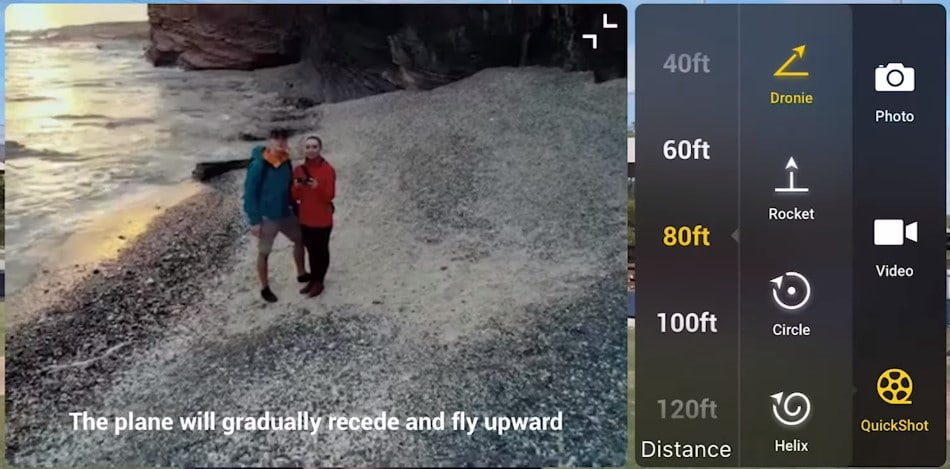
QuickShots are automated flight maneuvers that execute a specific camera move without pilot input. You lock onto a subject (person, car, building), select the shot type, set the distance, and the drone flies the pattern automatically while keeping the camera pointed at the subject. The result is footage that would require significant skill to execute manually.
QuickShots are available on the Mini 4 Pro, Air 3S, Mavic 4 Pro, and Flip. The DJI Neo supports a subset. All QuickShots require Normal mode and sufficient clear airspace for the maneuver.
DJI offers 6 QuickShot types. Each produces a distinct camera move with a single button press after subject selection.
All 6 QuickShot Types
QuickShot
Movement
Best for
Typical distance
Dronie
Rises backward and up while facing subject
Revealing location context
20-50m
Rocket
Rises straight up, camera pointing down
Top-down departure shots
20-50m
Circle
Orbits subject at fixed altitude
Product/building showcases
5-30m radius
Helix
Spirals upward while orbiting
Dramatic reveals
20-50m
Boomerang
Elliptical orbit, rising then descending
Action subjects
15-40m
Asteroid
Ascends, rotates, panorama, descends to subject
Cinematic openers
40-80m
MasterShots: Automated Multi-Move Sequences
MasterShots takes QuickShots further by executing a sequence of multiple moves and editing them together automatically. You select a subject, choose the scene type (Proximity, Landscape, or Portrait), and the drone executes 10 to 14 different shots autonomously over 3 to 5 minutes. It then generates a short edited video using DJI's on-device editing.
The result is not broadcast quality, but it's useful for quickly generating social media content from a single location. MasterShots is available on the Air 3S and Mavic 4 Pro. It requires significant clear airspace around the subject and takes considerably longer than a single QuickShot.
DJI Hyperlapse Flight Modes: All 4 Types
What Hyperlapse Mode Does
Hyperlapse captures a series of still images at set intervals while the drone moves, then combines them into a compressed video that shows movement at high speed. A 30-minute Hyperlapse session with 2-second intervals produces roughly 900 images, which compress into a 30-second video at 30fps. The result shows cloud movement, traffic flow, or landscape transitions in a visually compelling format.
Hyperlapse requires Normal mode and is available on the Mini 4 Pro, Air 3S, Mavic 4 Pro, and Flip. The DJI Neo does not support Hyperlapse. All four sub-modes use the same image-capture approach; they differ only in how the drone moves during capture.
Comparing the 4 Hyperlapse Sub-Modes
Sub-mode
How the drone moves
Pilot control
Best use case
Free
Any direction as you fly it
Full manual control
Creative custom paths
Circle
Orbits a set subject at fixed altitude
Sets orbit and speed, then automated
Rotating landmarks, sunsets around a point
Course Lock
Fixed compass heading, drifts with heading locked
Lateral drift only
Straight-line city flyovers
Waypoint
Follows pre-set GPS waypoints
Plans route, then automated
Repeatable paths, before/after comparisons
Tip: Waypoint Hyperlapse can be used to capture the same route at different times of day or different seasons. The drone follows the exact GPS path each time, making before/after comparisons precise.
Hyperlapse Settings That Matter
The two key settings in Hyperlapse are interval (time between frames) and speed (how fast the drone moves). Shorter intervals with faster movement produce smoother results. Longer intervals (10+ seconds) work for very slow subjects like sunsets but require 30+ minutes of capture time for a short clip. Shoot in RAW+JPEG if possible: the JPEG sequence is used for the in-camera Hyperlapse video, while the RAW files can be post-processed and compiled manually for higher quality results.
DJI FocusTrack Flight Modes: ActiveTrack, Spotlight, and Point of Interest
What FocusTrack Is
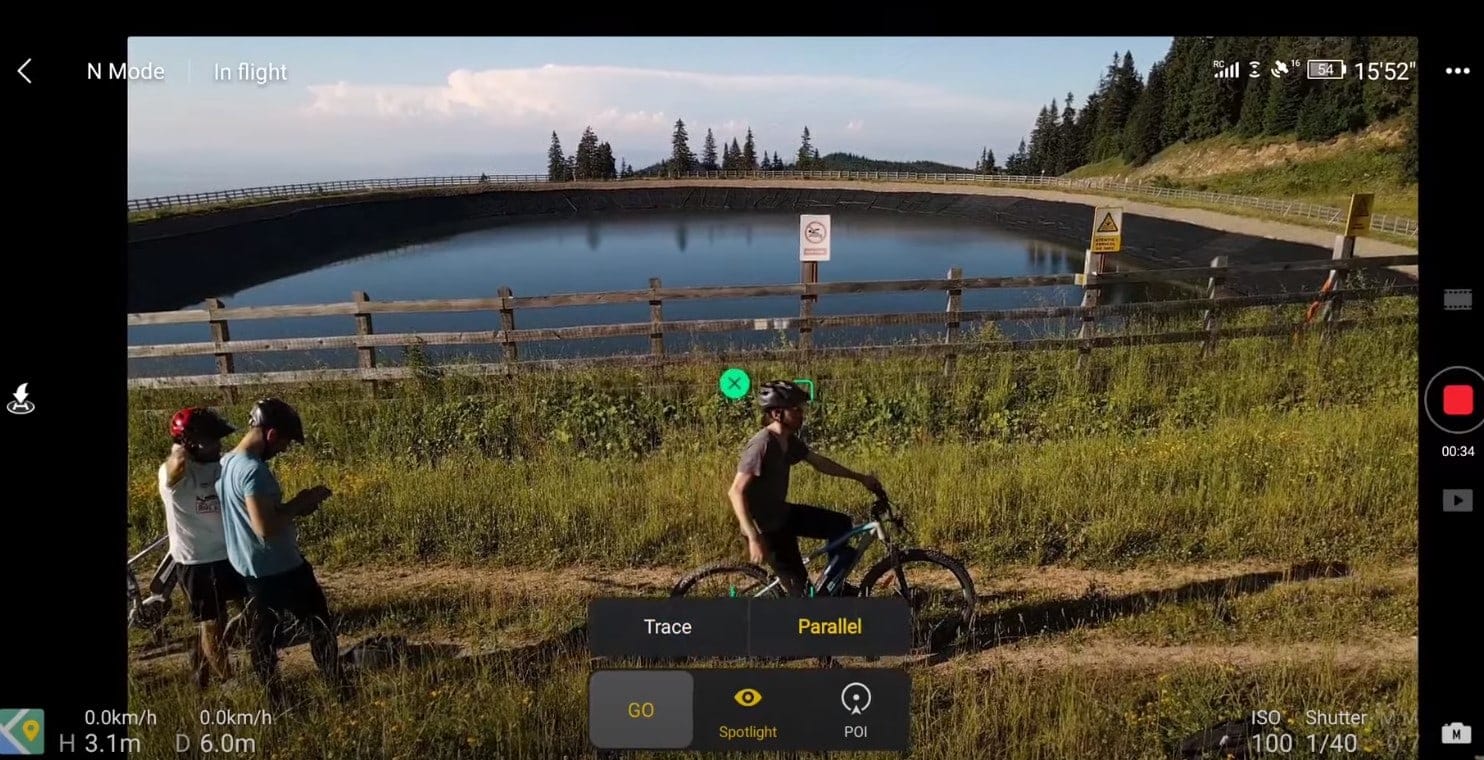
FocusTrack is DJI's umbrella name for three modes that keep the camera pointed at a subject or location automatically while the pilot controls the drone's flight. These are fundamentally different from QuickShots: FocusTrack does not automate the drone's movement, it automates the camera gimbal and yaw to maintain framing as you fly manually.
ActiveTrack follows the subject's movement and adjusts the aircraft position to keep them in frame. The pilot can override flight path at any time.
ActiveTrack: Following Moving Subjects
ActiveTrack recognizes and follows a moving subject (person, vehicle, animal) while keeping it centered in frame. The drone adjusts its position to maintain the subject in view, flying around obstacles if necessary on drones with omnidirectional sensing. The pilot can still input flight controls to adjust the drone's trajectory; ActiveTrack works with the pilot's inputs rather than ignoring them.
Key differences by model:
DJI Mini 4 Pro: ActiveTrack 360 with omnidirectional sensing. Follows from any angle and adjusts orbit dynamically.
DJI Air 3S: ActiveTrack with LiDAR sensing for precision tracking. Cycling Mode specifically designed for tracking cyclists through complex terrain.
DJI Mavic 4 Pro: ActiveTrack 360 Pro with the highest tracking reliability due to omnidirectional sensing and more processing power.
DJI Neo: ActiveTrack with a single forward camera only. Cannot track if the subject moves to the rear of the drone.
Spotlight and Point of Interest
Spotlight locks the camera on a fixed subject (a building, a stationary person) while the pilot flies the drone freely. The gimbal and yaw adjust automatically to keep the subject centered regardless of where the drone moves. This is useful for dramatic reveals: fly the drone in any direction while the camera stays locked on the chosen point.
Point of Interest (POI) is a subset: the drone circles a fixed GPS coordinate at a set altitude and radius while keeping the camera pointed inward. Unlike Circle QuickShot, POI gives the pilot control over speed and radius in real time. It's the most reliable mode for smooth orbital shots because the GPS coordinates anchor the orbit precisely even in light wind.
Point of Interest uses GPS coordinates, not visual recognition. It orbits a location, not an object. Use it for buildings and fixed landmarks; use ActiveTrack for moving subjects.
FAQ
DJI drones have three manual flight modes (Normal, Sport, Cine) and four categories of automated modes: QuickShots (6 types of automated maneuvers), MasterShots (multi-shot sequences), Hyperlapse (4 sub-modes for time-lapse photography), and FocusTrack (ActiveTrack, Spotlight, and Point of Interest for subject tracking). ATTI mode activates automatically as a failsafe when GPS signal is lost.
Sport mode increases the drone's maximum speed and responsiveness by disabling obstacle avoidance sensors. The Mini 4 Pro reaches 16 m/s in Sport, the Air 3S reaches 21 m/s, and the Mavic 4 Pro reaches 25 m/s. Because obstacle avoidance is off, Sport mode requires clear airspace and full pilot attention. Automated modes like QuickShots and FocusTrack are not available in Sport mode.
Cine mode limits the drone's maximum speed to approximately 6-8 m/s and softens the stick response, making movements more gradual. It does not change camera settings. Cine mode is used for smooth filming where abrupt start-stop movements would ruin a shot.
QuickShots are automated flight maneuvers. You lock onto a subject, select the shot type (Dronie, Rocket, Circle, Helix, Boomerang, or Asteroid), and the drone executes the move automatically while keeping the camera on the subject. They're available on the Mini 4 Pro, Air 3S, Mavic 4 Pro, and Flip in Normal mode.
ATTI (Attitude) mode disables GPS positioning. The drone self-levels but drifts with wind and cannot hold a fixed position or return home. On modern DJI consumer drones, ATTI mode activates automatically as a failsafe when GPS signal drops below usable levels. It is not dangerous if you're in a clear area and land immediately. It becomes dangerous in confined spaces where uncontrolled drift causes a collision.
FocusTrack is DJI's umbrella name for ActiveTrack, Spotlight, and Point of Interest. ActiveTrack follows a moving subject. Spotlight locks the camera on a fixed subject while you fly freely. Point of Interest circles a GPS coordinate at a set altitude and radius. All three keep the camera aimed at a target while the pilot controls the drone's flight path.
Hyperlapse captures still images at set intervals while the drone moves, then combines them into a time-lapse video. It has four sub-modes: Free (manual flight path), Circle (orbits a point), Course Lock (fixed compass heading), and Waypoint (pre-set GPS route). Hyperlapse is available on the Mini 4 Pro, Air 3S, Mavic 4 Pro, and Flip.
ActiveTrack follows a moving subject using computer vision: the drone adjusts its position to keep the subject in frame as they move. Point of Interest circles a fixed GPS coordinate. Use ActiveTrack for people, vehicles, or animals. Use Point of Interest for buildings, rock formations, or any stationary landmark where precise orbital stability matters more than visual recognition.
Paul Posea founded Dronesgator in 2015 and has been reviewing consumer drones for over a decade. With 195 YouTube drone reviews drawing 3.55 million views and published work on Digital Photography School, he combines hands-on flight testing with data-driven analysis to help pilots find the right drone.
Marcus Taylor is a UK CAA certified drone pilot and owner of Deployed Consultancy Ltd. With 6 years of commercial experience spanning UN site surveys in West Africa, aerial photography across Europe, Africa, and Japan, and defence consulting, he verifies the technical accuracy of Dronesgator's drone reviews and guides.