• Find My Drone

Drone SD Card Not Working: 8 Fixes by Error Type

Updated

By Paul Posea

Drone SD Card Not Working: 8 Fixes by Error Type - drone reviews and comparison

Drone SD Card Not Working: Check These First

DJI drone SD card problem fixes guide
Before reformatting, check physical seating and the write-protect switch. These take 10 seconds to verify and fix the problem about 15% of the time without any software intervention.

SD Card Not Seated Properly

The most immediate fix requires no software: power the drone off, remove the SD card, and reinsert it firmly until you feel or hear a click. On DJI Mini series drones, the SD card slot is tight and a partially inserted card can make enough contact to be detected but not enough to read reliably. If the drone shows "SD card detected" but immediately errors, reseat the card and retry before any other step.

Also clean the card's gold contacts with a dry lint-free cloth. Fingerprints and dust on the contacts create intermittent read errors. Do not use liquid cleaners on SD card contacts.

Write-Protect Lock Switch

Full-size SD cards have a small plastic slide switch on the left edge. When this switch is in the locked position, the card is read-only and the drone cannot write recordings to it. The drone may detect the card but show a write error or simply indicate no available storage. Slide the switch toward the edge labeled "unlocked" (away from the contact end of the card). Micro SD cards do not have a physical switch, but SD adapters used for reading microSD on computers do.

Physical Damage and Card Health

Inspect the card's contact pads for scratches, corrosion, or bent pins. A bent contact pin on a microSD card is visible under good lighting. Bent pins cannot be reliably straightened and the card should be replaced. Green corrosion on the contacts (from moisture exposure) may be cleanable with a cotton swab and IPA, but a corroded card is suspect even after cleaning and should not be used for critical footage.

Tip: Keep a spare known-working SD card in your kit. When troubleshooting an SD card error, swapping in the spare card immediately tells you whether the problem is the card itself or the drone's card reader. If the spare works, the original card is the issue. If the spare also errors, the drone is the issue.

SD Card Format: The Most Common Reason a Drone SD Card Won't Work

exFAT vs. FAT32 vs. NTFS

DJI drones use Linux-based operating systems. Linux cannot read NTFS (the default format for Windows drives). A card formatted as NTFS will work perfectly in Windows but produce a "File system error" in the drone. The correct format for drone SD cards is:

  • Cards 32GB or smaller: FAT32 (maximum file size 4GB, which limits individual video clips but is compatible with all devices)
  • Cards larger than 32GB (SDXC cards): exFAT (no file size limit, supports 4K video files over 4GB, required for 64GB and above)
  • NTFS: not compatible with DJI drones under any circumstances

Windows formats cards above 32GB as exFAT or NTFS by default depending on the Windows version. Always verify the format before inserting into a drone.

How to Format an SD Card for a DJI Drone

The fastest and most reliable method is formatting directly through DJI Fly, which applies the correct filesystem automatically:

  1. Insert the SD card into the drone and power on.
  2. Open DJI Fly and connect to the drone.
  3. Tap the camera icon, then the three-dot settings menu in the upper right.
  4. Scroll to Storage and tap Format SD Card.
  5. Confirm the format. All existing data on the card will be erased.

Back up any footage from the card before formatting. DJI Fly's format applies exFAT automatically for cards above 32GB and FAT32 for smaller cards.

To format on a computer: Windows: right-click the drive in File Explorer, select Format, choose exFAT (for cards 32GB or larger), and uncheck Quick Format for a full surface scan. Mac: open Disk Utility, select the card, click Erase, and choose ExFAT as the format.

Windows chkdsk: Fixing Errors Before Reformatting

If the card has footage you have not backed up and shows errors, try a chkdsk repair before reformatting:

  1. Insert the card into your computer via a USB card reader.
  2. Open Command Prompt as Administrator.
  3. Type: chkdsk F: /f (replace F: with your card's drive letter).
  4. Press Enter and wait for the repair to complete.
  5. Try the card in the drone again before reformatting.

chkdsk repairs file system errors without erasing data. It does not always succeed, but it is worth attempting before a format wipes the footage.

SD Card Speed Class and Compatibility for Drone Recording

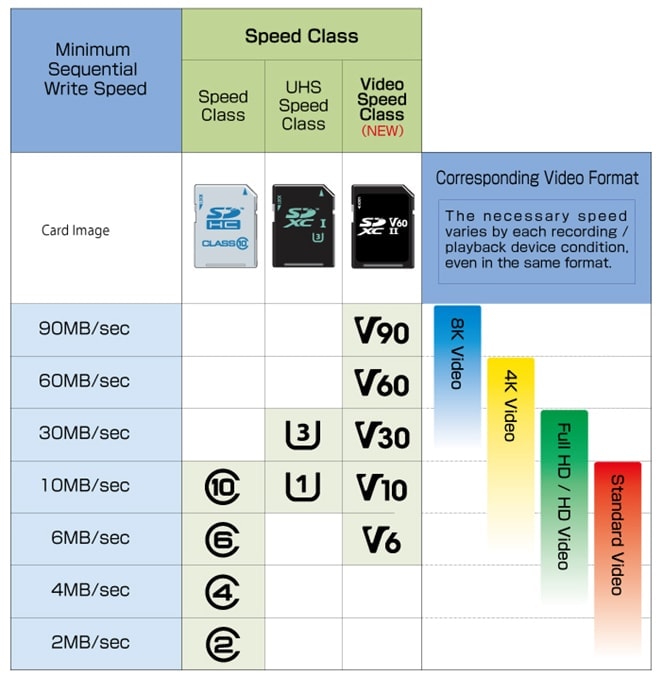
MicroSD card speed class ratings explained for drone use
U3 and V30 are different labels for the same 30 MB/s minimum write requirement. A card must show both the U3 symbol (3 inside a U) or V30 label to meet DJI's minimum for 4K recording.

U3, V30, and Why Class 10 Alone Is Not Enough

Class 10 means a card has a minimum sequential write speed of 10 MB/s. That was sufficient for 1080p video but not for 4K. DJI drones require a minimum of UHS Speed Class 3 (U3) or Video Speed Class V30, both indicating a minimum write speed of 30 MB/s. A card labeled Class 10 but not V30 or U3 will trigger an "Invalid Speed" error or silently drop frames during 4K recording.

10 MB/sClass 10 (not enough for 4K)
30 MB/sU3 / V30 (minimum for 4K)
60 MB/sV60 (overkill for most drones)

Max Card Size by DJI Model

Older DJI models have maximum supported card sizes. Inserting a card larger than the supported maximum causes a "no SD card" state or an unformatted card error even on a correctly formatted card:

DJI ModelMax Card SizeMin Speed Class
Mavic 4 Pro, Mini 5 Pro1TBU3 / V30 / A2
Air 3S, Air 3, Air 2S512GBU3 / V30
Mini 4 Pro, Mini 3 / Mini 3 Pro512GBU3 / V30
Mavic 3 series512GBU3 / V30
Mavic 2 Pro / Zoom128GBU3 / V30
DJI FPV, Avata256GBU3 / V30
Avata 2512GBU3 / V30

DJI Recommended Cards

DJI publishes a recommended SD card list for each drone model. Cards on the recommended list have been tested for compatibility beyond the speed class specification. Some cards meet the speed class requirement but have firmware or format compatibility issues that only appear on specific DJI models. If you are using a card not on the recommended list and experiencing errors, switching to a listed card (SanDisk Extreme Pro, Lexar 1066x, Kingston Canvas GO! Plus) is the fastest path to confirming whether the card is the cause.

DJI SD Card Error Messages and Fixes

"SD Card Malfunction" and Error Code 10023

Error code 10023 is DJI's most common SD card error. It appears for several causes:

  • Card not seated properly: power off, remove, and firmly reinsert
  • Card formatted as NTFS: reformat to exFAT via DJI Fly
  • Corrupted file system: run chkdsk on Windows, then reformat if chkdsk fails
  • Card exceeds the model's maximum supported size: replace with a smaller card
  • Card from a different device not compatible with DJI's implementation: reformat in DJI Fly

The fix sequence: remove and reseat the card first. If the error persists, format via DJI Fly (backing up footage first). If error persists after formatting, replace the card.

"File System Error. Chang SD Card"

This error almost always means the card is formatted as NTFS. Note the typo in the DJI error message ("Chang" not "Change"): this is the exact error string. NTFS formatting is the default for Windows drives above 32GB in some Windows versions. The card works fine in your computer but DJI's Linux OS cannot read it. Fix: format to exFAT via DJI Fly or Windows File Explorer (right-click, Format, exFAT). You do not need a new card.

Error Codes 10025 and 1C000408

Error 10025 appears when the drone loses power abruptly during recording, such as a crash or a battery disconnection mid-flight. The video file that was being written at the moment of shutdown is left incomplete, corrupting the file system metadata. The card itself is usually fine. Fix: run chkdsk on Windows or First Aid in macOS Disk Utility to repair the file system, then reformat via DJI Fly. You will likely lose the incomplete file from the interrupted flight, but older footage on the card can usually be recovered.

Error 1C000408 is Mavic 3 series-specific and indicates a file system compatibility issue between the card and the Mavic 3's media processor. It has been reported on cards that work correctly in other DJI models. If you see this error on a Mavic 3 with a card that passes all other checks, reformat the card directly in the Mavic 3 via DJI Fly (not on a computer), power cycle the drone, and retry. Cards with this error on the Mavic 3 are often fine after a drone-side format even if a computer format did not resolve it.

"Invalid Speed" and "SD Card Unavailable"

"Invalid Speed" means the card's write speed does not meet the minimum for the recording mode selected. Either the card is below V30/U3 spec, or a V30 card is not sustaining that speed due to heat or wear. Fix: switch to a V30 or faster card. If the card is rated V30 and still triggers this error, try a different card from the recommended list.

"SD Card Unavailable. Storage location switched to aircraft internal storage" appears on drones with built-in memory (DJI Neo, some Avata 2 configurations). The drone detected the SD card but could not read it, so it fell back to internal storage. All the above fixes apply. Check the card in a computer to confirm it mounts correctly before trying in the drone again.

Note: On drones without internal storage, if the SD card fails and there is no fallback, recording is simply disabled. DJI Fly will show the camera as active but no footage will be saved. Always verify SD card status in DJI Fly before takeoff.

Firmware, Corrupted Card Recovery, and SD Card Best Practices

DJI drone SD card compatibility and recommended cards
Using a card from DJI's recommended list eliminates compatibility variables when diagnosing persistent errors. Speed class alone does not guarantee compatibility on some DJI models.

Firmware Updates Resolving SD Card Issues

Several DJI firmware releases have specifically addressed SD card recognition and write error bugs. The DJI Mini 3 Pro had a known SD card formatting issue in early firmware that caused error 10023 on cards that were correctly formatted. The fix was applied in a subsequent update.

If the drone errors on a card that worked before a recent firmware update, check for a newer firmware patch in DJI Fly. If the current firmware is the latest, check the DJI community forums for reports of SD card issues on your specific model and firmware version. DJI typically addresses compatibility issues within two to three firmware cycles.

Recovering Files from a Corrupted Card

If the card shows errors but you have unrecovered footage on it, try file recovery before reformatting. Three tools that work on corrupted FAT32 and exFAT cards:

  • Recuva (Windows, free): scans the card for recoverable files without overwriting data
  • TestDisk / PhotoRec (Windows/Mac, free, open source): lower-level recovery that bypasses the file system
  • DiskDrill (Mac/Windows, paid): simpler interface for non-technical users

Run recovery before any format or chkdsk operation on the card, as chkdsk and formatting may overwrite the file data you are trying to recover.

SD Card Best Practices to Prevent Future Errors

  • Format the card in DJI Fly before each major shoot, not just the first use. Cards used across multiple devices accumulate file system artifacts.
  • Never remove the SD card while the drone is powered on or while a recording is in progress. Power off completely before removing the card.
  • Do not fill the card completely. Keep at least 5 to 10% free. Full cards produce write errors as the drone attempts to close video files.
  • Replace cards after 3 to 5 years of regular use or after any physical impact to the card.
  • Keep a spare card in your kit and use it immediately when diagnosing errors rather than continuing to test the suspect card.

FAQ

The most common cause is a card formatted as NTFS instead of exFAT. Windows may format large cards as NTFS by default, and the card works on your computer but triggers a "File system error" in the drone. Reformat to exFAT through DJI Fly (Camera settings, Storage, Format SD Card). The second most common cause is insufficient speed class: the card must be rated U3 or V30 (30 MB/s minimum write speed), not just Class 10.

Error 10023 is DJI's general SD card malfunction error. It can mean the card is not seated properly, formatted incorrectly (NTFS instead of exFAT), corrupted, exceeding the model's maximum supported size, or otherwise incompatible. Start by removing and reinserting the card firmly. If the error persists, format the card through DJI Fly. If it persists after formatting, try a different card.

Cards 32GB or smaller should be formatted as FAT32. Cards larger than 32GB (most cards used for 4K recording) must be formatted as exFAT. NTFS is not compatible with DJI drones under any circumstances. The easiest way to apply the correct format is to use DJI Fly's built-in format function (Camera settings, Storage, Format SD Card), which applies the right filesystem automatically.

You need a minimum of UHS Speed Class 3 (U3) or Video Speed Class V30, which both indicate a minimum write speed of 30 MB/s. Class 10 alone is not sufficient for 4K recording and will trigger an "Invalid Speed" error or silent frame drops. Check the card for the U3 symbol (a 3 inside a U shape) or a V30 label alongside the Class 10 indicator.

This error almost always means the card is formatted as NTFS. Reformat it to exFAT: in DJI Fly go to Camera settings, Storage, Format SD Card (this applies exFAT automatically). Alternatively, on Windows, right-click the card in File Explorer, select Format, and choose exFAT. You do not need to buy a new card. Back up any footage on the card before formatting.

"SD Card Unavailable" means the drone detected the card but could not read or write to it, and switched to internal storage if available. Common causes: the card is not seated properly, the file system is corrupted or in the wrong format, or the card exceeds the model's maximum supported size. Remove the card, check it in a computer to confirm it mounts and is readable, then reformat via DJI Fly before reinserting.

Not all cards work reliably, even if they meet the speed class requirement. DJI publishes a recommended card list for each model, and some cards have firmware or compatibility issues that only appear in specific DJI drones despite meeting speed class specs. For consistently reliable results, use cards from DJI's recommended list: SanDisk Extreme Pro, Lexar 1066x, Kingston Canvas GO! Plus, or Samsung PRO Plus are widely confirmed to work across DJI consumer models.

Run file recovery software before any formatting or chkdsk operation, as these can overwrite the file data you are trying to recover. Recuva (Windows, free) and PhotoRec (Windows/Mac, free) can scan the card for recoverable video files even when the card shows file system errors. Insert the card via a USB card reader, run the recovery tool, and save recovered files to a different drive before attempting any repair on the original card.

A card that shows as full when it is not is usually a file system error where the allocation table is corrupted. The card physically has free space but the OS cannot see it. Run chkdsk on Windows (Command Prompt as Administrator: chkdsk F: /f, replacing F: with your drive letter) to repair the allocation table without erasing data. If chkdsk fails, back up any visible files and reformat the card via DJI Fly.

Paul Posea

Paul Posea

Author · Dronesgator

Paul Posea is the founder of Dronesgator and has been reviewing and comparing drones since 2015. With a Part 107 certification, 195 YouTube drone reviews, and published work on Digital Photography School, he combines hands-on flight testing with data-driven analysis to help pilots find the right drone.