Calibration Fails or Error Returns After Calibrating
If compass calibration completes successfully but the error returns on the next power-up, the most likely causes are:
- The calibration was performed near a source of magnetic interference that is present at your usual flying location (a metal vehicle, a building with rebar, a power line)
- The drone is consistently flown in areas with high magnetic interference and the compass keeps drifting back out of range
- A hardware fault in the compass module itself
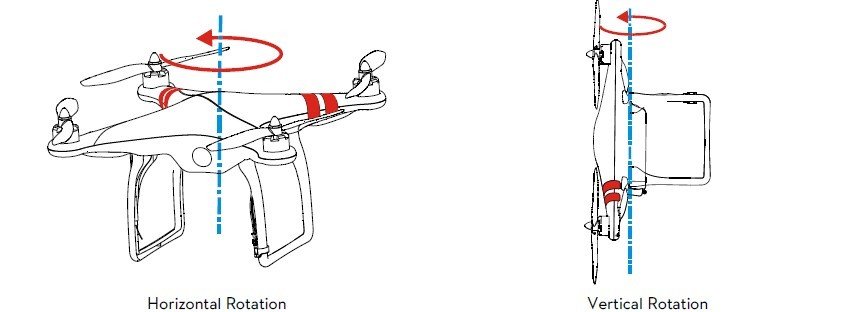
If IMU calibration completes but the drone still drifts, check that the calibration surface was truly level (use a phone level app to verify), that the drone was completely still during each position hold, and that no vibration source was nearby. Repeat on a concrete floor if the first attempt was on a wood or carpet surface.
"IMU Cannot Be Calibrated" Error
This error means the sensor readings are so far outside normal range that the calibration algorithm cannot produce valid correction values. Causes include: a failed IMU sensor component, firmware corruption, or the drone operating in extreme temperature (below 0C or above 40C). Warm the drone to room temperature (20-25C) and retry. If the error persists after a firmware reinstall via DJI Assistant 2, the IMU module needs replacement. Contact DJI support at support.dji.com.
How to Check if Calibration Is Needed Without Waiting for a Prompt
In DJI Fly, tap the three-dot menu, then Safety, then Sensors. The Sensors screen shows the current status of both the compass and IMU with a green (normal), yellow (caution), or red (calibration required) indicator. Checking this screen before a flight in a new location or after a long storage period takes about 10 seconds and gives you a real status reading rather than waiting for an in-flight warning.
Note: If DJI Fly prompts for calibration during a flight, land immediately and calibrate on the ground before resuming. Attempting to fly through a compass error warning risks erratic heading behavior during RTH or Waypoint missions, where the drone relies on compass heading to navigate back to the home point.
Vision Sensor Calibration (Obstacle Avoidance)
The compass and IMU calibrations above apply to flight stability. DJI drones with obstacle avoidance (Air 3S, Mavic 4 Pro, Mini 4 Pro, Mini 5 Pro) also have a separate vision sensor calibration for the forward, backward, and downward optical sensors. This calibration is needed when DJI Fly shows a "Vision system error" or "Vision sensor calibration required" warning, or after the drone has experienced a hard landing that could have shifted the sensor housing alignment.
Access it in DJI Fly: tap the three-dot menu, then Safety, then Sensors, then Vision. Tap Calibrate and follow the on-screen prompts. The drone will ask you to point the camera at a flat, featureless white or light-colored surface (a blank wall works well) at a specific distance of about 2 meters. The calibration takes about 60 seconds and does not require moving the drone.
Tip: Vision sensor calibration should also be run after replacing the gimbal or front camera housing, as physical disassembly can shift the sensor mounting angle even fractionally, causing false obstacle detections or missed obstacles at close range.