• Find My Drone

DJI Drone Hacks: Why You Probably Don't Need One to Fly Higher

Updated

By Paul Posea · Verified by Marcus Taylor

DJI Drone Hacks: Why You Probably Don't Need One to Fly Higher - drone reviews and comparison

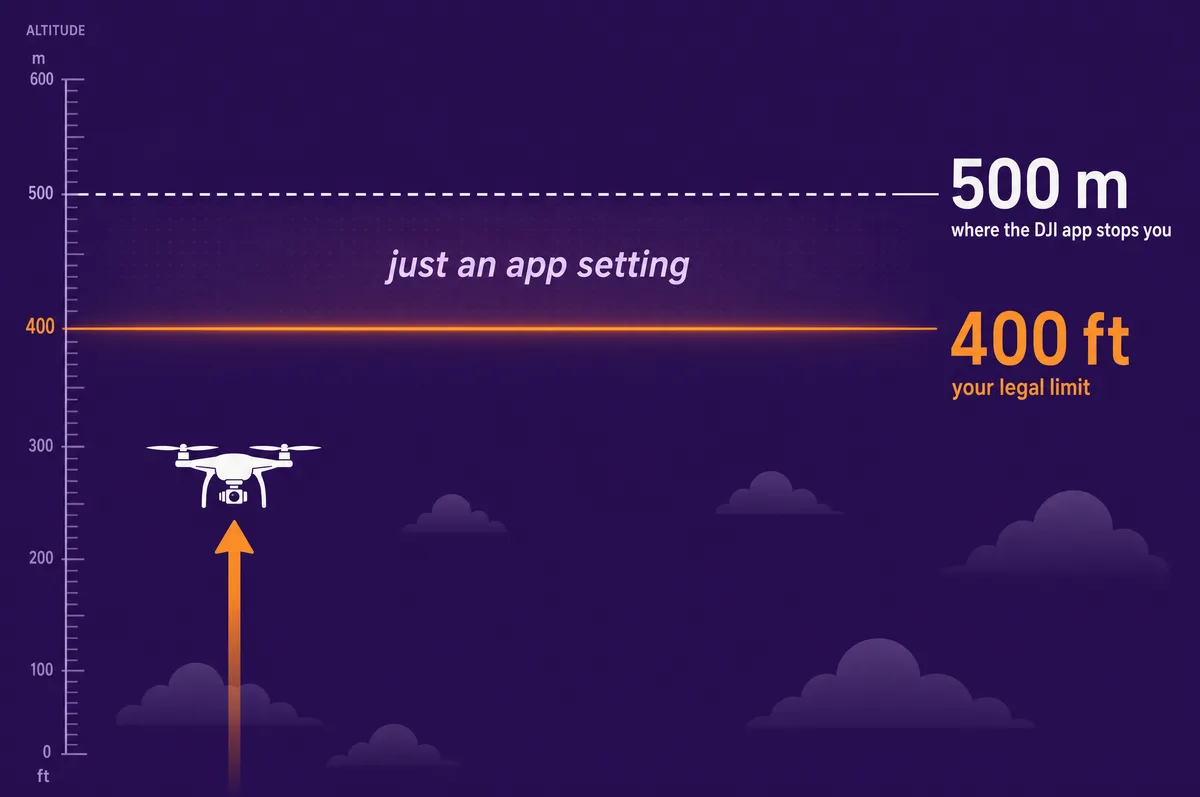
Almost everyone searching for a "DJI altitude hack" is trying to solve a problem they do not actually have. They hit the 120 meter (400 foot) limit, assume DJI has locked the drone, and go looking for a way to break it. Here is the part nobody leads with: the DJI Fly app already lets you raise the altitude limit to 500 meters (1,640 feet) with a slider. No hack, no modified firmware, no risk. It is a setting.

This guide untangles the three things people constantly confuse: what DJI's software limits actually are, what the law allows (which is much lower), and what real third-party "hacks" do and why they are a bad idea. We will also cover the big 2025 change, when DJI removed its no-fly-zone blocks in the US, because it quietly made most "unlock" hacks pointless. By the end you will know exactly how high you can fly, legally, without touching a hack.
The Short Answer: You Probably Don't Need a Hack

If your goal is simply to fly higher than the default 120 meters, you do not need to hack anything. DJI builds the higher limit right into the app.

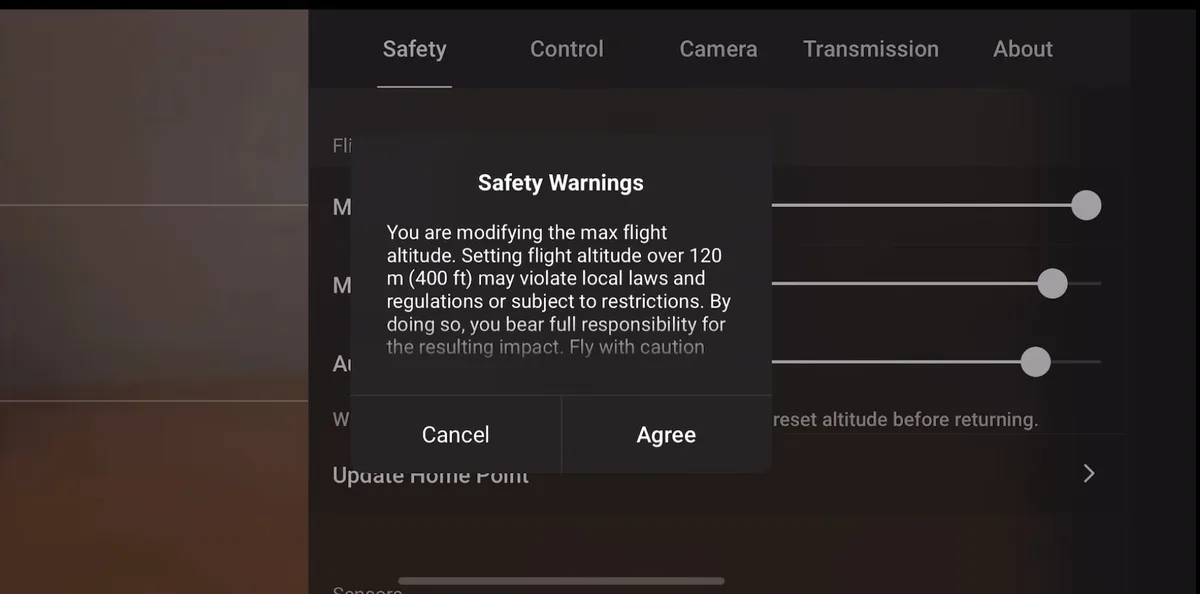
Out of the box, DJI Fly caps your maximum altitude at 120 m (400 ft), because that matches the legal limit in most countries. But that cap is a slider, not a lock. You can drag it up to 500 m (1,640 ft) in the app's Safety settings. When you push past 120 m, DJI shows a warning that you are responsible for following local law, you tap to accept, and that is it.

So the real question is not "how do I hack the altitude limit?" It is "how high am I legally allowed to fly?" In the US and most of the world, that answer is 400 ft above the ground, which is below the slider's maximum anyway. The slider already gives you more altitude than the law allows. A hack only matters if you want to break the law or the laws of physics, and we will explain why that is a mistake further down.

The DJI Fly altitude slider goes to 500 m (1,640 ft). The US legal limit is 400 ft (120 m). The setting already exceeds the law, so there is nothing to unlock for normal flying.
Free interactive tool

Altitude & geofencing reality checker

Pick where you fly to see how high your DJI drone is allowed to go, what the app already lets you set, and whether you need a hack at all.

DJI Fly app max altitude setting500 m (1,640 ft)
Your legal ceiling in United States400 ft (120 m) above the ground
DJI geofencing todayWarnings, not blocks

Part 107 pilots may go higher only within 400 ft of a tall structure, or with an FAA altitude waiver. Recreational flyers are capped at 400 ft. DJI removed hard no-fly blocks in January 2025. Most former zones are now warnings you acknowledge and fly; controlled airspace still needs LAANC authorization.

You do not need a hack.

DJI's own altitude slider already reaches 500 m (1,640 ft), far above your legal ceiling. The only thing between you and the legal maximum is a setting in the app. Read the US drone law guide for the full rules.

How to Set Your DJI Max Altitude in the Fly App

Raising the limit takes about ten seconds and works on every current DJI drone that runs the DJI Fly app. With the drone powered on and connected:

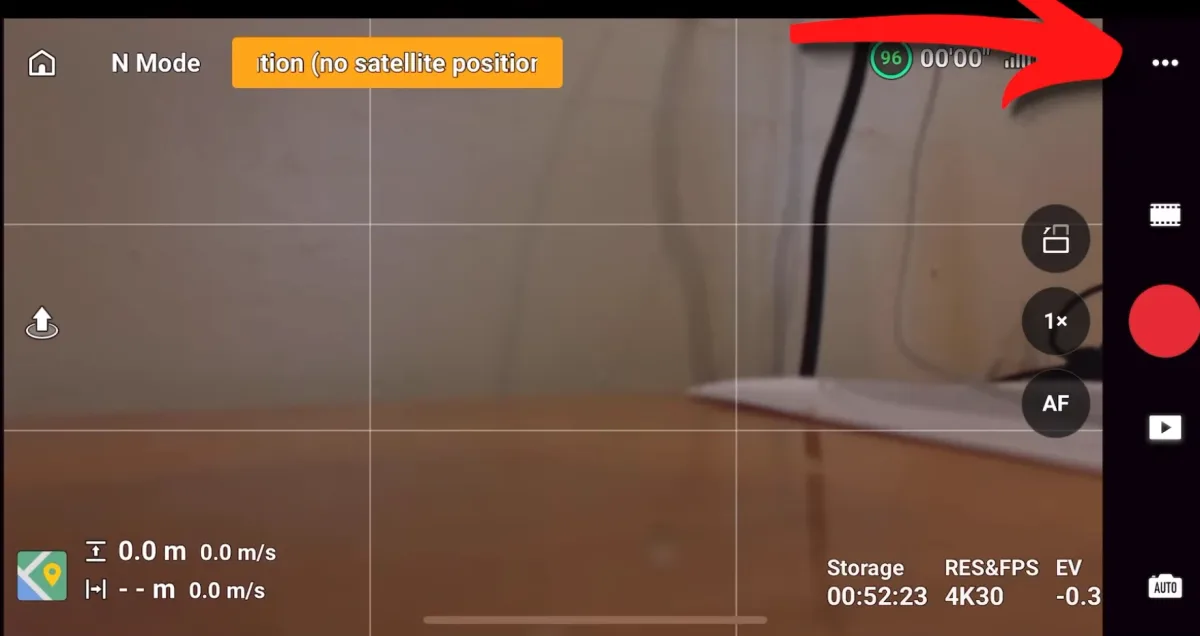
  1. Tap the three dots (the system settings) in the top right of the camera screen.
  2. Open the Safety tab.
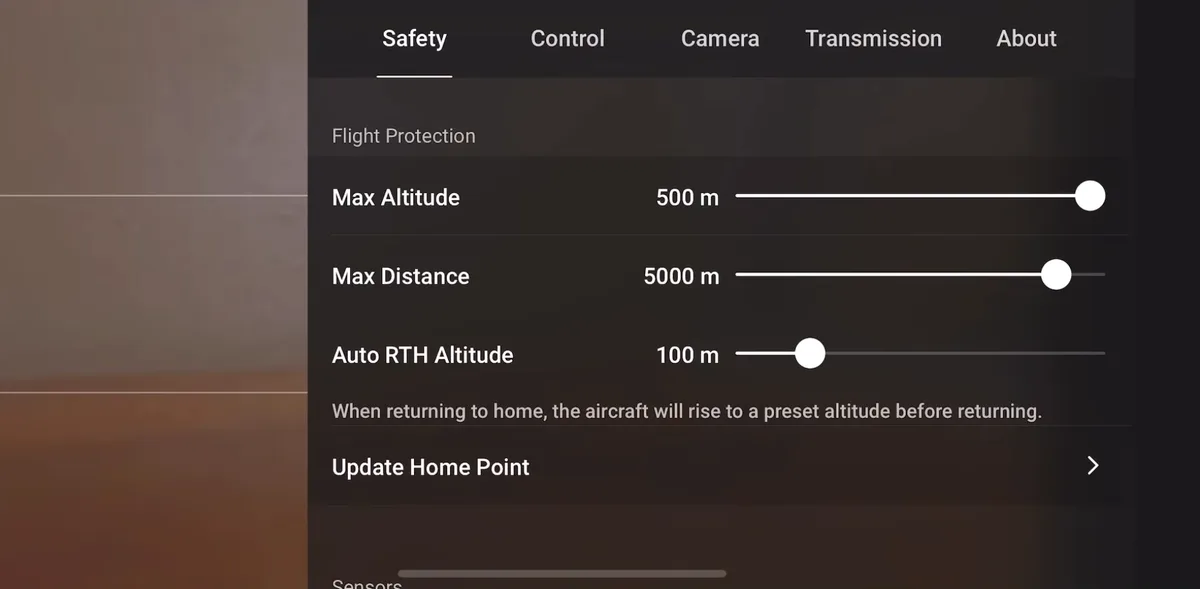
  3. Find Max Altitude and drag the slider, or tap the number, up to your target. The app allows up to 500 m (1,640 ft).
  4. If you set it above 120 m (400 ft), DJI shows a notice that flying that high may break local rules and that you accept responsibility. Acknowledge it to continue.
The DJI Fly camera screen with a red arrow pointing to the three-dot system settings button in the top right corner
Step 1: open the system settings with the three dots in the top-right corner.
The DJI Fly Safety tab with Max Altitude set to its 500 m maximum, alongside Max Distance and Auto RTH Altitude sliders
Step 3: the Max Altitude slider dragged to its 500 m (1,640 ft) maximum. No hack required, it is a built-in setting.
The DJI Fly Safety Warnings dialog stating that setting altitude over 120 m (400 ft) may violate local laws and the pilot bears full responsibility, with Cancel and Agree buttons
Step 4: above 120 m (400 ft) DJI shows this warning. You accept responsibility for following local law, then tap Agree.

That same Safety tab also holds Max Distance and Auto RTH Altitude (the height your drone climbs to before flying home, which you should set above the tallest obstacle near your launch point). For a deeper look at how high drones can actually go, and the difference between a drone's service ceiling and the legal limit, see our guide on how high a drone can fly.

DJI's Software Limits vs the FAA 400ft Law

This is the distinction that sends people looking for hacks. DJI's app limit and the actual law are two completely separate things, and the app limit is the more generous of the two.

DJI defaultDJI app maximumUS law (FAA)
Max altitude120 m (400 ft)500 m (1,640 ft)400 ft above ground
How you reach itout of the boxdrag the slider in Safetythis is the legal ceiling, not a setting
Cost of going past itnone, it is just a defaultnone from DJI, you accept a warningFAA penalties, often thousands of dollars

Read that middle column again: the app lets you set 500 m, but the right column is the one that actually binds you. In the US the FAA caps both recreational and Part 107 commercial flyers at 400 ft above ground level in normal airspace. Setting the slider to 500 m does not make 500 m legal. It just removes DJI's reminder. The responsibility is entirely yours.

Note: Software limits and the law are independent systems. DJI loosening a software cap, or removing a no-fly zone, never changes what is legal. You still have to follow the FAA (or your national authority).

What Changed in 2025: DJI Removed Its Geofencing

For a decade, DJI's GEO system physically blocked takeoff and flight near airports, stadiums, and sensitive sites. That is the system most "DJI no-fly-zone unlock" hacks existed to defeat. In 2025 DJI dismantled most of it, which made those hacks largely pointless.

The timeline:

  • January 13, 2025: DJI removed hard geofencing locks in the US. Former Restricted (red) zones became Enhanced Warning Zones. The drone now shows a prominent warning near airports and critical infrastructure, but you can acknowledge it and fly. DJI also swapped its own zone data for official FAA data.
  • November 17, 2025: DJI rolled the same advisory model out globally, so the change reached most international markets.
  • Early 2026: DJI began retiring its GEO Unlock Request service entirely, since modern firmware no longer hard-blocks the way it used to.

DJI's reasoning was that, after ten years, regulators never required manufacturer geofencing and instead built their own systems (Remote ID and, in the US, LAANC airspace authorization). DJI shifted the responsibility to the pilot, where the law already put it.

Important: DJI removing a software block does not make the airspace legal. If the FAA requires authorization (for example, LAANC in controlled airspace near an airport), you still need it. The warning is gone, the law is not.

DJI No-Fly Zones Today: What You Can and Can't Change

After the 2025 change, most DJI zones are advisory. You see a warning, confirm you understand, and fly. There is nothing to unlock for those. A few categories still matter:

  • Enhanced Warning Zones: Advisory only. Acknowledge and fly. No unlock needed.
  • Altitude Zones (the gray zones near airport approach paths): These still cap your altitude for safety, and you cannot and should not turn them off. If your drone is stuck at a low ceiling near an airport, this is almost always why, not a missing hack.
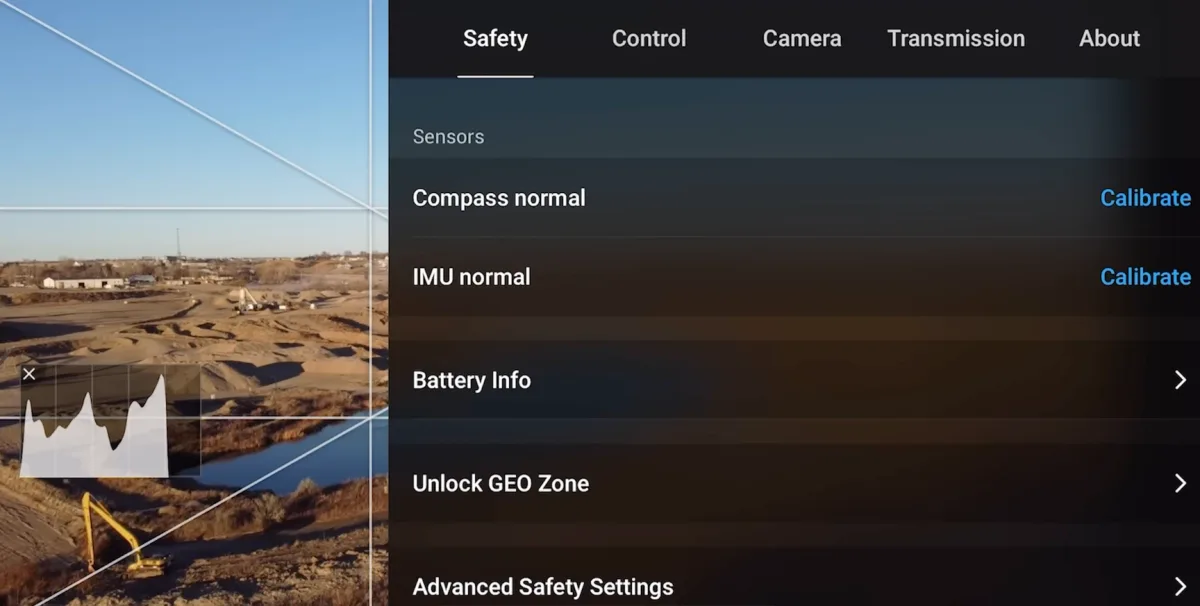
  • Older firmware and some regions: If you are on older firmware, you may still see DJI's legacy Authorization Zones with the official Self-Unlock process. For anything that still requires it, use DJI's own FlySafe process rather than a third-party tool. Our DJI geofencing guide walks through the official route.
The DJI Fly Safety menu showing the Unlock GEO Zone option alongside compass and IMU calibration and advanced safety settings
The Unlock GEO Zone tool lives in the DJI Fly Safety tab. For zones that still require it, this is the official, legal way to unlock, no third-party hack involved.

What "DJI Hacks" Actually Are, and What They Cost You

When people sell "DJI hacks," they mean modified or downgraded firmware that removes the things DJI builds in: the 500 m altitude ceiling, geofencing, regional transmission-power limits (the so-called FCC or boost mode), and speed caps. They typically work by flashing altered firmware or installing an unlock certificate. We are not going to explain how to do it, because the downsides are serious and the upside is mostly imaginary now that the slider and geofencing changes cover the legal use cases.

Here is what a modded firmware hack actually costs you:

  • It does not change the law. Flying above 400 ft without a waiver, or in controlled airspace without authorization, is a federal violation no matter what the firmware allows. The hack just removes the reminder, not the liability.
  • Boosting transmission power is illegal radio operation. Forcing higher power than your region permits violates FCC (or local) rules, and that is the kind of thing that is detectable and enforceable.
  • It can brick or destabilize your drone. Modding can cause unstable flight or permanently kill the aircraft, and DJI has historically pushed firmware updates that undo or break these mods.
  • It voids your warranty. DJI denies warranty claims when modified firmware is detected. Vendor promises that it is "reversible" and "safe" are disputed in pilot communities.
  • You carry all the risk. Disabling airport and altitude safety limits puts your drone into airspace shared with crewed aircraft. That is exactly the scenario these limits existed to prevent.
A hack removes DJI's guardrails, not the law or the physics. For the things most people actually want (more altitude, flying in a former no-fly zone), DJI now gives you a legal path for free.

Legitimate Reasons to Fly Above 120m

There are real situations where raising the slider above the 120 m default is genuinely useful and can be legal. They are narrower than people assume:

  • Inspecting a tall structure. In the US, a Part 107 pilot may fly up to 400 ft above a structure's highest point, as long as the drone stays within 400 ft horizontally of it. Inspecting a 300 ft tower can legally put you at 700 ft above the ground, and you need the higher slider setting to do it.
  • Mountainous or sloped terrain. The 400 ft limit is measured from the ground below the drone. Fly out over a valley and the ground drops away, so the app may read a much higher number even though you are legally fine relative to the terrain. The higher slider setting keeps the app from cutting you off.
  • An FAA altitude waiver. For genuine above-400 ft operations, you apply for a Part 107 altitude waiver. It takes time and justification, but it is the legal route, and the slider lets you actually use the authorization once granted.

Outside cases like these, the honest answer is that you almost never need to be above 400 ft, and the footage rarely justifies the risk. Use the checker above to confirm the limit where you fly, and read our US drone law guide or drone laws by country before you push the slider up.

FAQ

You can, with modified third-party firmware, but you almost certainly should not and usually do not need to. The DJI Fly app already lets you raise the maximum altitude to 500 m (1,640 ft) with a slider in the Safety settings, which is far above the legal limit in most countries. A hack only removes DJI's software guardrails. It does not make higher flight legal, and it voids your warranty and can brick the drone.

Yes. In the DJI Fly app, open the three-dot settings, go to the Safety tab, and the Max Altitude slider lets you set anything up to 500 m (1,640 ft). The default is 120 m (400 ft) because that matches the legal limit, but raising it is a built-in setting, not a hack. When you go above 120 m, DJI shows a warning that you are responsible for local rules.

In almost all cases, no. The US FAA limits both recreational and Part 107 flyers to 400 ft (about 120 m) above the ground in normal airspace, and most countries use the same 400 ft limit. The only common exceptions are flying within 400 ft of a tall structure under Part 107, or holding an FAA altitude waiver. Setting the app slider to 500 m does not make flying there legal.

Mostly, yes. In January 2025 DJI removed hard geofencing blocks in the US and turned former no-fly zones into advisory Enhanced Warning Zones that you can acknowledge and fly through. It rolled this out globally in November 2025. Altitude zones near airports still cap your height for safety and cannot be turned off. Removing a software block does not change the law, so you still need LAANC or other authorization where it is required.

It can do both. Modified firmware voids your DJI warranty once detected, and flashing altered or downgraded firmware can cause unstable flight or permanently brick the aircraft. DJI has also released firmware updates that undo or break these mods. Given that the app already offers a 500 m altitude slider and DJI has dropped most geofencing, the risk rarely makes sense.

In the US, a Part 107 commercial pilot can fly up to 400 ft above a structure as long as they stay within 400 ft horizontally of it, or can apply for a Part 107 altitude waiver for other above-400 ft operations. Recreational flyers are held to 400 ft above the ground. In all cases you raise the DJI app's altitude slider to use the higher limit, but the legal authorization has to come first.

Paul Posea

Paul Posea

Author · Dronesgator

Paul Posea founded Dronesgator in 2015 and has been reviewing consumer drones for over a decade. With 195 YouTube drone reviews drawing 3.55 million views and published work on Digital Photography School, he combines hands-on flight testing with data-driven analysis to help pilots find the right drone.

Marcus Taylor

Marcus Taylor

Expert Reviewer · Deployed Consultancy Ltd

Marcus Taylor is a UK CAA certified drone pilot and owner of Deployed Consultancy Ltd. With 6 years of commercial experience spanning UN site surveys in West Africa, aerial photography across Europe, Africa, and Japan, and defence consulting, he verifies the technical accuracy of Dronesgator's drone reviews and guides.