• Find My Drone

DJI Fly App Guide: Every Feature Explained

Updated

By Paul Posea

DJI Fly App Guide: Every Feature Explained - drone reviews and comparison

Which DJI Drones Use the DJI Fly App

2019DJI Fly launched
15+supported models
FreeiOS and Android

DJI Fly vs DJI GO 4: Which App Do You Need?

DJI GO 4 supports older platforms: Phantom 4 series, Mavic Pro, Mavic 2, Spark, and Inspire 1/2. If you own any of these, DJI GO 4 is the app to use. DJI Fly does not work with them.

DJI Fly supports everything released from the Mavic Mini (2019) forward:

  • Mini series: Mini SE, Mini 2, Mini 2 SE, Mini 3, Mini 3 Pro, Mini 4 Pro, Mini 4K, Mini 5 Pro
  • Air series: Air 2S, Air 3, Air 3S
  • Mavic series (newer): Mavic 3, Mavic 3 Classic, Mavic 3 Pro, Mavic 4 Pro
  • Neo, Neo 2, Flip, Avata 2 (with RC Motion 3)
If you own a Phantom or original Mavic Pro, you need DJI GO 4, not DJI Fly. The apps are not interchangeable.

DJI Pilot 2 and RC Memo

DJI also makes DJI Pilot 2 for enterprise drones like the Matrice and Mavic 3 Enterprise series. RC Memo is a standalone app for the RC 2 controller that adds note-taking to flight logs. Neither replaces DJI Fly for consumer pilots.

How to Download and Update DJI Fly

Search "DJI Fly" on the App Store or Google Play. The genuine app is free, made by SZ DJI Technology Co., and has a Profile tab in the bottom nav. Counterfeit apps with similar names exist; if you see a subscription paywall on first launch, you have the wrong app.

Updates arrive every few weeks. DJI Fly will prompt you to update firmware when you connect your drone. You can also update the app itself through your app store. Always update both the app and drone firmware together to avoid mismatches.

Note: DJI Fly supports Apple Watch as a secondary display for basic flight telemetry: altitude, distance, battery level, and GPS status. It does not give you camera controls. Pair it through the DJI Fly companion app for Apple Watch, available on the App Store.

The DJI Fly Camera Interface Explained

DJI Fly app main camera interface on a smartphone
The DJI Fly camera interface shows live feed, telemetry, and shooting controls in one view.

The Main Camera Screen Layout

When your drone is connected, the main screen is a full-screen live camera feed with UI overlays:

  • Top left: Back arrow, safety status indicator (green/yellow/red), and signal bars for RC and drone
  • Top center: Flight mode indicator (Normal, Sport, Cine), battery percentage, GPS satellite count, flight time
  • Top right: Settings gear (three dots), auto-return home button, flight record icon
  • Left side: Gimbal tilt slider (drag to point camera from straight ahead to straight down)
  • Right side: Camera shutter button, photo/video toggle, shooting mode selector, zoom slider
  • Bottom left: Mini map showing drone position and home point
  • Bottom right: Altitude, horizontal speed, vertical speed readouts

Flight Mode Selector

The mode indicator at the top center cycles through three modes when tapped:

Normal mode (N): Standard flight. Obstacle avoidance active on supported drones. Max speed around 10 m/s. Best for most flying.

Sport mode (S): Top speed roughly doubles (up to 19 m/s on Mini 4 Pro, 21 m/s on Air 3S). Obstacle avoidance turns off. For experienced pilots in open areas.

Cine mode (C): Inputs are dampened for slow, smooth movements. Maximum speed drops to about 6 m/s. Designed for shooting video where sudden corrections would create jarring footage.

Note: Sport mode disables obstacle avoidance automatically. The app does not warn you about this on every switch. Always check your surroundings before enabling it.

Exposure Controls and Camera Settings

Tap the camera icon on the right side to reveal the exposure panel. In Auto mode, the drone manages aperture (on drones with adjustable aperture), ISO, and shutter speed. In Pro mode, you control all three manually.

The quick-access camera bar at the bottom of this panel shows resolution and frame rate presets. Tap the current preset to change it, such as switching from 4K/30fps to 4K/60fps for action shots, or 4K/24fps for a more cinematic look.

DJI Fly QuickShots, MasterShots, and Hyperlapse

6QuickShot modes
1 tapto start MasterShots
4Hyperlapse modes

QuickShots: Six Automated Cinematic Moves

QuickShots are pre-programmed flight patterns that film a subject automatically. You select a subject by drawing a box around it on screen, choose a QuickShot type, set a distance, and tap Go. The drone handles the rest.

The six QuickShots available on most DJI Fly drones:

  • Dronie: Flies backward and upward while keeping the subject in frame. Good opening shot for revealing surroundings.
  • Helix: Spirals upward while orbiting the subject. Works well over single objects like a car or building.
  • Rocket: Flies straight up with the camera pointing straight down. Creates a bird's-eye reveal.
  • Boomerang: Sweeps in an ellipse around the subject, starting and ending at roughly the same point.
  • Asteroid: Flies backward and upward, then rotates to face backward, flies a sphere, and returns. Creates a dramatic reveal when reversed in editing.
  • Circle: Orbits the subject at a constant radius and altitude.
Tip: QuickShots need at least 8 meters of clear airspace in all directions. Run them in open fields, not near trees or buildings. The drone will abort the maneuver if it detects an obstacle mid-flight.

MasterShots: Automated Multi-Shot Sequence

MasterShots combines several shots into a single automated sequence. You select a subject, set a maximum distance, and the drone films 10-12 different angles and movements automatically. DJI's app then edits them into a short video with music, stored in your phone's gallery.

MasterShots is better suited to standalone subjects: a car, a landmark, a person standing still. It works poorly when the environment is complex or the subject is moving. The edit it produces is a starting point, not a finished product.

Hyperlapse Modes

Hyperlapse shoots a series of photos at set intervals and compiles them into a sped-up video. Four Hyperlapse modes in DJI Fly:

  • Free: Fly wherever you want while the drone shoots at intervals. Manual hyperlapse.
  • Circle: Orbits a point while shooting. Creates a smooth spinning hyperlapse.
  • Course Lock: Flies a straight path. Works well for tracking a road or coastline.
  • Waypoint: Follows a pre-set route. Repeatable; useful for comparing the same scene over time.

FocusTrack: ActiveTrack, Spotlight, and Point of Interest

FocusTrack is a separate intelligent mode from QuickShots. Where QuickShots run a fixed pre-programmed move, FocusTrack keeps the camera locked on a subject continuously while you fly wherever you want. Access it by drawing a selection box around a subject on screen; three tools appear at the bottom of the selection.

  • ActiveTrack: The drone follows the subject automatically, adjusting position and altitude to keep it in frame. Works with people, vehicles, and animals in motion. Obstacle avoidance stays active during tracking.
  • Spotlight: The camera stays locked on the subject but the drone does not move autonomously. You fly manually while the gimbal rotates to keep the subject centered. Good for orbiting a subject at custom speed and distance.
  • Point of Interest (POI): The drone orbits a GPS-defined point at a set radius, altitude, and speed. You tap a point on the map (or current drone position), set parameters, and the drone circles automatically. Useful for filming landmarks where you want a perfectly consistent orbit.
Tip: FocusTrack requires GPS lock and sufficient lighting for subject recognition. It works best outdoors with a clear sky. In low light or indoors, the subject detection fails and the mode reverts to manual.

DJI Fly Pro Mode and D-Log M Settings

DJI Fly app Pro Mode settings showing manual exposure controls
Pro Mode gives manual control over shutter speed, ISO, and white balance.

How to Switch to Pro Mode

In the camera interface, tap the shooting mode selector (the icon to the right of the shutter button, labeled A for Auto). Swipe or scroll until you see Pro. Pro mode appears on all current DJI Fly drones. It applies to both photo and video shooting.

In Pro mode, the exposure panel expands to show:

  1. EV (exposure value) - a quick offset knob if you want auto as a base
  2. Shutter speed - manual entry, displayed as a fraction (1/500, 1/60, etc.)
  3. ISO - 100 to 6400 depending on drone model
  4. White Balance - manual Kelvin entry or presets (Sunny, Cloudy, Incandescent)
The 180-degree shutter rule: for natural motion blur in video, set shutter speed to double your frame rate. At 30fps, use 1/60. At 60fps, use 1/120. Without ND filters, this is only achievable in shade or overcast conditions.

D-Log M and Color Profiles

D-Log M is DJI's flat log color profile. It compresses highlights and lifts shadows to preserve the widest possible dynamic range for color grading. Available on Mini 4 Pro, Mini 5 Pro, Air 3, Air 3S, Mavic 3 series, and Mavic 4 Pro. Not available on Mini 3, Mini 3 Pro, or older sub-$500 models.

To enable D-Log M: in the camera settings panel, scroll to Color. Switch from Normal to D-Log M. The live feed will look flat and desaturated on screen. That's correct. It's designed for post-processing in Lightroom, DaVinci Resolve, or Premiere.

Two other color profiles you'll see in DJI Fly:

  • Normal (D-Color): DJI's standard color. Good contrast, slightly warm. Ready to post without grading.
  • HLG (Hybrid Log-Gamma): Designed for HDR displays. Wide dynamic range with less extreme grading required vs D-Log M. Available on higher-end models.

Recommended Settings for Video

A useful starting setup for most video shoots: 4K at 30fps, Pro mode, ISO 100, shutter speed 1/60 (add ND8 or ND16 filter in bright light), white balance set to Kelvin around 5500 on a sunny day. Color profile Normal for immediate use, D-Log M if you plan to grade. Save a custom preset so you don't reset every flight.

DJI Fly Settings, Safety Features, and Troubleshooting

Safety Settings Worth Configuring Before Every First Flight

Tap the three-dot gear icon in the top right of the camera screen to open the main settings. Safety settings live under the Safety tab:

  • Return to Home Altitude: Sets how high the drone climbs before flying home. Default is 30 meters. Raise this to clear any obstacles between your drone and home point. Set it to at least the height of the tallest object in the area.
  • Max Flight Altitude: FAA limit for recreational pilots is 400 feet AGL (about 122 meters). DJI Fly defaults to 120 meters but can be adjusted. Part 107 pilots can unlock higher limits.
  • Max Flight Distance: Can be set to limit how far the drone goes. Useful when flying near sensitive areas or teaching new pilots.
  • Obstacle Avoidance: Three levels on supported drones: Bypass (drone tries to fly around), Brake (drone stops when it detects an obstacle), Off. Bypass is safest for most conditions. Off is for experienced pilots in constrained areas.

Firmware Updates in DJI Fly

When you connect your drone, DJI Fly checks for firmware updates automatically. A banner appears at the top of the screen if an update is available. Tap it to update wirelessly. The update downloads to your phone, then transfers to the drone over the RC connection. Takes 5-15 minutes. Do not disconnect during an update.

If the app and drone firmware are mismatched after a partial update, the drone may refuse to fly. In that case, use DJI Assistant 2 (Consumer Drones) on a desktop computer to restore firmware via USB.

Cache Management and App Performance

DJI Fly caches preview video from each flight session on your phone. Over time this can grow to several gigabytes. Clear it under Profile > Cache. Phones with less than 3GB free storage will see lag in the live feed and delayed map loading.

Tip: If DJI Fly freezes or shows a black camera feed on launch, clear the app cache first. This fixes about half of all DJI Fly performance complaints without any reinstall.

Built-In Video Editor

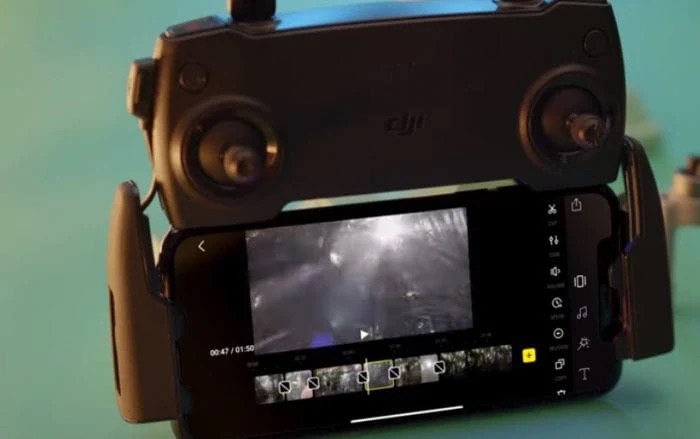
DJI Fly includes a lightweight video editor under the Album tab. Import clips directly from the drone's SD card or your phone's gallery, trim footage, assemble a basic timeline, and add music from DJI's royalty-free library or your own tracks. The editor exports directly to your camera roll for sharing to Instagram, TikTok, or YouTube without touching a desktop app.

The editor is not a replacement for DaVinci Resolve or Premiere. It has no color grade controls, no multi-track audio, and no motion graphics. For quick social media clips straight from the card, it works well. For anything that requires precise color work or complex cuts, pull the footage to a desktop workflow.

Flight Records and the DJI Fly Academy

All flights are logged under Profile > Flight Records. Each record shows GPS track, max altitude, max distance, flight duration, and video/photo count. DJI Fly also includes Academy: short tutorial missions that teach basic maneuvers using a simulated flight environment. Worth running through if you're new to flying or just picked up a model with different handling characteristics than your last drone.
FAQ

DJI Fly supports all DJI consumer drones released from 2019 onward, including the Mini series (Mini SE through Mini 5 Pro), Air series (Air 2S, Air 3, Air 3S), Mavic 3 series, Mavic 4 Pro, DJI Neo, Neo 2, and Flip. Older drones including the Phantom 4, Mavic Pro, Mavic 2, and Spark use DJI GO 4 instead.

Update through the App Store (iOS) or Google Play (Android) like any other app. When you connect your drone, DJI Fly will also prompt you to update drone firmware if a new version is available. Always update both the app and the drone firmware at the same time to avoid mismatches.

QuickShots are six automated flight patterns that film a subject without manual piloting. The six modes are Dronie (backward and upward), Helix (spiral orbit), Rocket (straight up), Boomerang (elliptical sweep), Asteroid (sphere reveal), and Circle (constant orbit). You select a subject on screen, choose a mode, and the drone films it automatically.

D-Log M is DJI's flat log color profile that preserves the widest dynamic range for post-production color grading. It is available on Mini 4 Pro, Mini 5 Pro, Air 3, Air 3S, and Mavic 3/4 series. Footage shot in D-Log M looks flat and desaturated on screen but retains more shadow and highlight detail for editing in Lightroom or Premiere.

A black camera screen usually means one of three things: the USB cable between your phone and controller isn't passing data (try a different cable), the DJI Fly app cache needs clearing (Profile > Cache > Clear), or the drone's camera is initializing after a cold start. If none of those fix it, force-close the app and reopen it while the drone is already powered on.

Go to the three-dot settings icon in the camera view, tap the Safety tab, and adjust the Return to Home altitude. Set it to at least the height of the tallest object between your drone and its home point. The default is 30 meters, which is too low for many locations with trees or buildings.

DJI GO 4 supports older DJI drones: Phantom 4, Mavic Pro, Mavic 2, Spark, and Inspire 1/2. DJI Fly supports all consumer drones from the Mavic Mini (2019) onward. The two apps are not interchangeable. If you try to use DJI Fly with a Phantom 4, it won't recognize the drone.

MasterShots is an automated mode that films a subject from 10-12 different angles and movements in a single sequence, then edits them into a short video with music. You select a subject, set a distance, and the drone handles everything. It works best with standalone subjects like a car, landmark, or person in an open area.

Paul Posea

Paul Posea

Author · Dronesgator

Paul Posea is the founder of Dronesgator and has been reviewing and comparing drones since 2015. With a Part 107 certification, 195 YouTube drone reviews, and published work on Digital Photography School, he combines hands-on flight testing with data-driven analysis to help pilots find the right drone.