How to Edit Drone Footage: Software, Color Grading, and Export Settings

Updated

By Paul Posea

How to Edit Drone Footage: Software, Color Grading, and Export Settings - drone reviews and comparison

Choosing the Right Software to Edit Drone Footage

Best editing software for DJI drone footage including DaVinci Resolve and LumaFusion
From free mobile apps to professional desktop software, the right editor depends on your platform and output needs
$0DaVinci Resolve (free)
$30LumaFusion (one-time)
$55/moPremiere Pro

Software Comparison for Drone Footage

SoftwarePlatformCostLearning CurveBest For
DJI FlyiOS / AndroidFreeEasyQuick social edits in the field
CapCutiOS / Android / DesktopFreeEasyReels, TikTok, social media
LumaFusioniOS / iPadOS$30 one-timeModerateBest mobile editor for serious work
DaVinci ResolveMac / Windows / LinuxFreeSteepColor grading, professional output
Premiere ProMac / Windows$55/monthModerateFull professional workflow

DaVinci Resolve: The Free Professional Option

DaVinci Resolve is the best free option for editing drone footage. The free version includes the full editing timeline, the Color page (which is industry-standard for color grading), Fairlight audio editing, and export up to 4K. The paid Studio version ($295 one-time) adds GPU acceleration for H.265 decoding, noise reduction, and HDR grading, but the free version handles most drone editing workflows without limitation.

When DJI Fly or CapCut Is Enough

If you only post to Instagram or TikTok and never deliver to clients, DJI Fly's built-in editor or CapCut will handle basic trimming, templates, and music. These apps cannot do manual color grading with curves, apply custom LUTs, or handle multi-track timelines. For anything beyond social media posts, move to a desktop editor.
Tip: If you are choosing between DaVinci Resolve and Premiere Pro and cost is a factor, start with DaVinci Resolve. It is free, and its color grading tools are actually more advanced than Premiere Pro's built-in Lumetri panel. You can always switch later if your workflow demands it.

How to Edit Drone Footage in DJI Fly

DJI Fly app video editing interface SkyStyle templates
The DJI Fly app offers built-in editing with SkyStyle templates, trim controls, and direct social media export

Accessing Your Footage

Open DJI Fly and tap the "SkyScapes" or "Album" icon at the bottom of the home screen. Your footage is organized by flight session in the Sky Library. Tap any clip to preview it, then tap "Edit" to enter the built-in editor. If you transferred footage to your phone via Quick Transfer, those clips appear in the local album section.

Basic Editing Steps

  1. Select the clips you want to include and tap "Create"
  2. Trim each clip by dragging the handles at either end of the timeline
  3. Apply a SkyStyle template if you want a preset color look (Golden Hour, Cinematic, and Vivid are the most natural-looking options)
  4. Adjust exposure, contrast, and saturation using the manual sliders
  5. Add background music from DJI's royalty-free library or import your own audio
  6. Set export resolution: 1080p for social sharing, 4K if your phone supports it

DJI Fly Editor Limitations

The DJI Fly editor does not support manual keyframes for effects, custom LUT imports, multi-track audio, or picture-in-picture layouts. It also does not support editing D-Log footage properly because it cannot apply a D-Log to Rec. 709 conversion LUT. If you shot in D-Log, export the raw files to a desktop editor instead of trying to fix them in DJI Fly.

Note: DJI Fly exports in H.264 format. For maximum quality on footage you plan to re-edit later, transfer the original files from the SD card rather than using DJI Fly's export, which compresses the footage further.

Color Grading Drone Footage from D-Log to Cinematic

Why Shoot in D-Log

D-Log (and D-Log M on newer DJI drones) is a flat color profile that captures more dynamic range than the standard Normal profile. Footage shot in D-Log looks grey and washed out straight from the camera. This is intentional: the flat image preserves detail in highlights and shadows that would be clipped in a standard profile, giving you more room to push colors during the grade.

Applying a LUT as a Starting Point

A LUT (Look-Up Table) maps the flat D-Log color space to a standard color space like Rec. 709. DJI provides free LUTs for each camera model on their downloads page. In DaVinci Resolve, apply the LUT on the Color page by right-clicking in the node tree, selecting "LUT," and choosing the appropriate D-Log to Rec. 709 file. This gets you about 80% of the way to a natural look.

Manual Color Grade Steps

  1. Lift the blacks slightly (raise the Lift wheel in DaVinci Resolve) to avoid crushed shadows in aerial wide shots
  2. Pull down the highlights (Gain wheel) to recover any clipped sky detail
  3. Add saturation gradually, stopping at 10-15% above the LUT baseline for natural colors
  4. Adjust the color temperature to match the actual lighting conditions (drone auto white balance is often slightly cool)
  5. Use the HSL qualifier to isolate and enhance green foliage or blue water without affecting the entire frame
The most common color grading mistake is over-saturating greens and blues. Aerial footage already emphasizes landscape colors because of the wide field of view, so a light touch on saturation produces a more cinematic result than pushing it aggressively.
Warning: Never apply a D-Log LUT to footage shot in Normal color mode. The LUT expects a flat input and will produce oversaturated, high-contrast results on footage that is already color-corrected in-camera. Check your camera settings before grading.

Editing Drone Footage for YouTube, Instagram, and Client Delivery

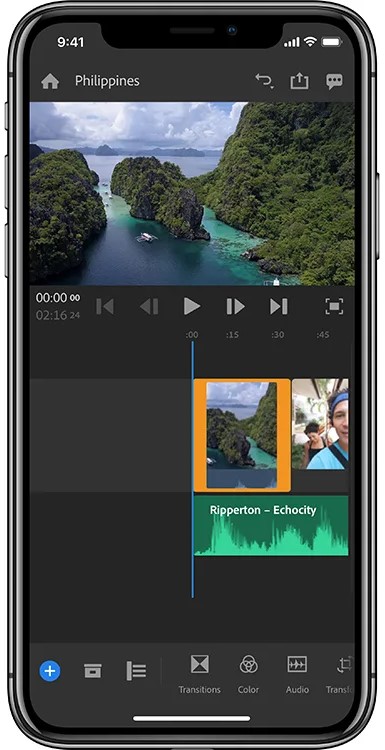
Adobe Premiere Rush interface for editing drone footage for social media export
Export settings differ significantly between YouTube 4K delivery and Instagram Reels vertical format

YouTube: 16:9 Landscape

YouTube favors 16:9 landscape at the highest resolution your camera captures. Export at 4K (3840x2160) if your drone shoots 4K, even if most viewers watch at 1080p, because YouTube allocates higher bitrate streams to 4K uploads. Use H.264 for broad compatibility or H.265 for smaller file sizes at the same quality. Target a bitrate of 35-45 Mbps for 4K. Longer edits (3-8 minutes) perform better on YouTube than short clips.

Instagram Reels and TikTok: 9:16 Vertical

Vertical content requires cropping your 16:9 drone footage to 9:16 (1080x1920). In DaVinci Resolve, change the timeline resolution to 1080x1920 before importing clips, then reframe each shot to focus on the most interesting part of the frame. Keep edits to 30-60 seconds. The first 3 seconds need a strong visual hook because viewers scroll past anything that starts slowly. Export at 1080p, H.264, 10-15 Mbps.

Client Delivery: Maximum Quality

Real estate agents, construction companies, and commercial clients expect high-quality deliverables. Export at 4K in ProRes 422 (if the client uses Mac) or H.264 at 50 Mbps or higher. Do not add music to client deliverables unless specifically requested, because clients often add their own branding audio. Organize footage in a logical sequence (exterior establishing shots first, then detail shots, then interior if applicable) rather than a cinematic montage.

Tip: For real estate drone video, deliver both a 60-second highlight reel and the full-length edit (2-3 minutes). Agents use the short version for social media listings and the long version for the MLS property page. Charging for both versions increases your per-job value. See our drone photography pricing guide for rate benchmarks.

Common Drone Footage Editing Mistakes to Avoid

Leaving Gimbal Wobble at the Start of Clips

The first 1-3 seconds of most drone clips include a subtle gimbal settle as the stabilization adjusts after takeoff or a mode change. Always trim the beginning of every clip. Set an in-point 2-3 seconds into the footage to start with clean, stable movement. This single habit improves production quality more than any color grade.

Overusing Speed Ramps

Speed ramps (slowing down then speeding up a clip) became popular through YouTube tutorials, but using more than one per video makes the edit feel gimmicky. One well-placed speed ramp during a dramatic reveal or transition is effective. Three or four in a 60-second video is distracting. Let the natural pace of aerial movement carry most of your footage.

Ignoring Audio

Drone footage recorded with onboard audio captures nothing but wind and motor noise. Never include raw drone audio in a finished edit. Replace it entirely with music, ambient sound effects, or silence. If you are creating a real estate or commercial video, silence with a voiceover is more professional than a generic music track.

Over-Sharpening in Post

Drone cameras already produce sharp images because of the wide depth of field and small sensor size. Adding sharpening in post-production introduces edge artifacts that are especially visible on architectural lines, tree branches, and water edges. If you feel the need to sharpen, set the radius to 0.5-1.0 and the amount below 30% in DaVinci Resolve's sharpening tool.

Inconsistent Color Between Clips

If you flew multiple passes in different lighting conditions, each clip will have a slightly different color temperature and exposure. Grade one clip first as your reference, then match the remaining clips to it using the Color Match tool in DaVinci Resolve or the Comparison View in Premiere Pro. Viewers notice when consecutive clips shift from warm to cool tones.

Note: If your drone footage looks choppy or stuttery before you even start editing, the issue may be a camera settings problem rather than an editing problem. See our guide on why drone footage looks choppy for frame rate and shutter speed fixes.

FAQ

DaVinci Resolve is the best free option with professional-grade color grading tools. For mobile editing, LumaFusion ($30, iOS only) is the most capable. For professional workflows that integrate with Adobe products, Premiere Pro ($55/month) is the industry standard. For quick social media edits in the field, the DJI Fly app or CapCut work for basic trimming and templates.

Open the DJI Fly app, go to the Album or SkyScapes section, select your clips, and tap Edit. You can trim clips, apply SkyStyle color presets, adjust exposure and saturation, add music, and export at up to 4K. For more advanced mobile editing with multi-track timelines and LUT support, use LumaFusion on iOS or CapCut on Android.

D-Log is DJI's flat color profile that captures more dynamic range by producing a desaturated, low-contrast image. Shoot in D-Log if you plan to color grade in post-production using a desktop editor like DaVinci Resolve. If you post directly from your phone without color grading, shoot in Normal mode instead, because D-Log footage looks flat and grey without a grade applied.

Start by applying a D-Log to Rec. 709 LUT (available free from DJI's downloads page) as a baseline correction. Then fine-tune: lift the blacks slightly to avoid crushed shadows, pull down highlights to recover sky detail, add 10-15% saturation, and adjust white balance. Use HSL qualifiers to enhance specific colors like greens or blues without affecting the full image.

Yes, but performance depends on your hardware. H.265 footage (common on newer DJI drones) requires more processing power than H.264. If playback is choppy, use proxy editing: DaVinci Resolve and Premiere Pro can generate lower-resolution proxy files for smooth editing, then switch to full resolution for final export. An 8GB RAM computer with a dedicated GPU handles 4K editing adequately with proxies.

The simplest solution is to mute the audio entirely and replace it with music or a voiceover. Drone onboard audio is almost entirely wind and motor noise. If you need to preserve some ambient audio from a scene, DaVinci Resolve's Fairlight page has noise reduction tools that can attenuate consistent noise patterns, but results on drone audio are limited because the noise dominates the recording.

For YouTube: 4K (3840x2160), H.264, 35-45 Mbps. For Instagram Reels: 1080x1920 vertical, H.264, 10-15 Mbps, 30-60 seconds. For client delivery: 4K, ProRes 422 or H.264 at 50+ Mbps, no music unless requested. Always export at the same frame rate you recorded in (typically 24fps or 30fps for cinematic footage, 60fps only if the client needs slow motion).

A basic social media edit (trim, add music, export) takes 10-20 minutes. A color-graded 60-second cinematic video takes 1-3 hours including clip selection, grading, transitions, and audio. A full real estate drone video package (exterior, interior, highlight reel) typically takes 2-4 hours of editing time. The editing time decreases significantly as you develop templates and a repeatable workflow.

Paul Posea

Paul Posea

Author

Dronesgator

Paul Posea is the founder of Dronesgator and has been reviewing and comparing drones since 2015. With a Part 107 certification, 195 YouTube drone reviews, and published work on Digital Photography School, he combines hands-on flight testing with data-driven analysis to help pilots find the right drone.