The DJI Fly app is the free software that controls almost every current DJI drone, from the Mini and Air series to the Mavic 4 Pro, Neo, and Flip. It runs the live camera feed, automated shots, exposure, and safety settings, and it is where new pilots get stuck first, because almost none of it is obvious the first time you open it.
This guide covers what people actually search for: which app your specific drone needs, how to install DJI Fly (including on Android, where it is not on the Google Play Store), what every part of the camera interface does, and the settings worth changing before your first flight. Use the picker below to find your app, then jump to any section.
Free interactive tool
Which DJI app does your drone use?
Pick your model and we will tell you the right app, where to download it, and whether you even need a phone.
The DJI Mini 4 Pro usesDJI FlyCurrent app
DJI's current app for consumer and prosumer drones.
On iPhone, get it from the App Store. On Android it is not on the Google Play Store, so you download it from DJI's official download page (steps below). If you fly with a screen controller like the DJI RC 2 or RC Pro, DJI Fly is already built in and you do not need a phone at all.
Which DJI Drones Use the DJI Fly App
DJI Fly vs DJI GO 4: Which App Do You Need?
DJI GO 4 supports older platforms: Phantom 4 series, Mavic Pro, Mavic 2, Spark, and Inspire 1/2. If you own any of these, DJI GO 4 is the app to use. DJI Fly does not work with them.
DJI Fly supports everything released from the Mavic Mini (2019) forward:
Mini series: Mini SE, Mini 2, Mini 2 SE, Mini 3, Mini 3 Pro, Mini 4 Pro, Mini 4K, Mini 5 Pro
Air series: Air 2S, Air 3, Air 3S
Mavic series (newer): Mavic 3, Mavic 3 Classic, Mavic 3 Pro, Mavic 4 Pro
Neo, Neo 2, Flip, Avata 2 (with RC Motion 3)
If you own a Phantom or original Mavic Pro, you need DJI GO 4, not DJI Fly. The apps are not interchangeable.
DJI Pilot 2 and RC Memo
DJI also makes DJI Pilot 2 for enterprise drones like the Matrice and Mavic 3 Enterprise series. RC Memo is a standalone app for the RC 2 controller that adds note-taking to flight logs. Neither replaces DJI Fly for consumer pilots. If you want third-party options with extra features like waypoint missions, see our roundup of the best apps for DJI drones.
Do You Even Need a Phone? Controllers Explained
It depends on your controller. The DJI RC-N3 and RC-N2 (the ones with no screen) are just a cradle: your phone runs DJI Fly and does the work. The DJI RC 2, RC Pro, and RC Pro 2 have a built-in screen with DJI Fly already installed, so you do not need a phone at all. If you bought a screen controller, you can skip the install steps below.
How to Download and Install DJI Fly
On iPhone and iPad, open the App Store, search DJI Fly, and install it like any other app. The genuine app is free and published by SZ DJI Technology Co.
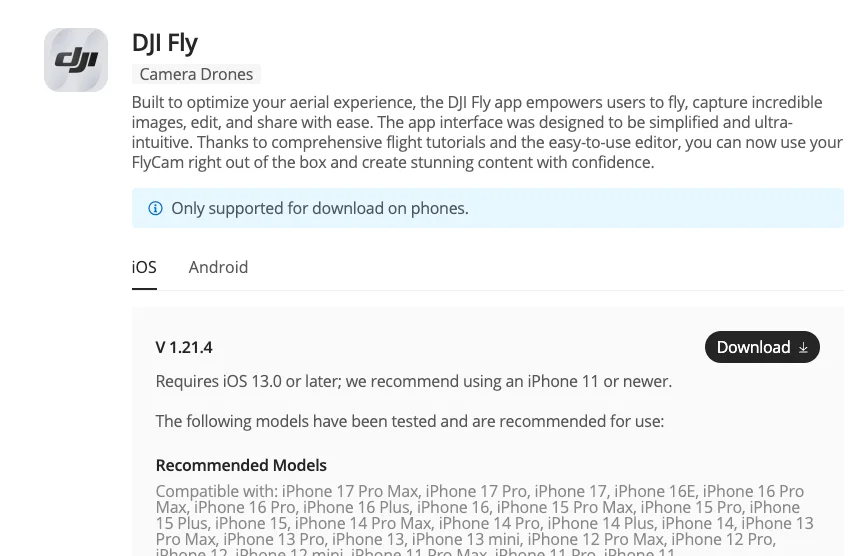
On Android, DJI Fly is not on the Google Play Store. DJI pulled it years ago and never brought it back, so searching Google Play finds nothing current, or an outdated version that will not connect to a modern drone. You download it straight from DJI’s official download page, and the visual guide just below walks through it step by step.
DJI Fly is downloaded from DJI’s own website, not the Google Play Store. Choose the iOS or Android tab.
Only download the Android installer from dji.com. Mirror sites like Softonic and APKPure host DJI Fly files, but flight-control software from an unverified source is a real malware and tampering risk. If a copy demands a subscription on first launch, it is fake.
If an old Play Store version is still on the phone, uninstall it first, since having both can stop the app from launching. Once installed, DJI Fly updates itself and prompts you to update drone firmware when you connect. Always update the app and firmware together to avoid mismatches. If the app ever misbehaves, our DJI app not working guide walks through every common connection and crash fix.
Note: DJI Fly supports Apple Watch as a secondary display for basic flight telemetry: altitude, distance, battery level, and GPS status. It does not give you camera controls. Pair it through the DJI Fly companion app for Apple Watch, available on the App Store.
Android only
Installing DJI Fly on Android
DJI Fly is not on the Google Play Store, so you install it straight from DJI in four steps.
Download the installerTap to download the .apk file. It is an installer, not a Play Store app.
3
Allow unknown appsWhen prompted, let your browser install unknown apps: Settings, Apps, your browser, Install unknown apps, Allow.
4
Open it and installTap the downloaded file and confirm. On Android 13 and 14, tap through the older-version warning.
On iPhone or iPad? Skip all of this. DJI Fly is on the Apple App Store, so it installs like any normal app.
The DJI Fly Camera Interface Explained
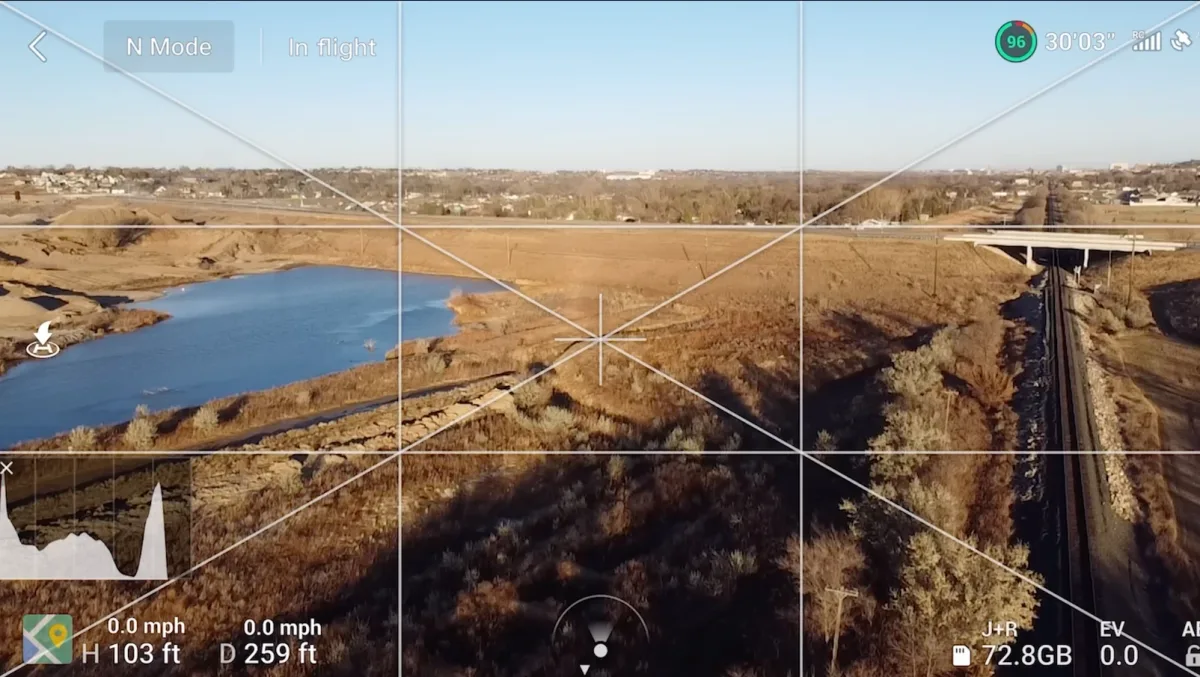
The DJI Fly camera view: flight mode and telemetry up top, exposure histogram and map bottom-left, altitude and distance along the bottom, and shooting controls on the right.
The Main Camera Screen Layout
When your drone is connected, the main screen is a full-screen live camera feed with UI overlays:
Top left: Back arrow, safety status indicator (green/yellow/red), and signal bars for RC and drone
Top center: Flight mode indicator (Normal, Sport, Cine), battery percentage, GPS satellite count, flight time
Top right: Settings gear (three dots), auto-return home button, flight record icon
Left side: Gimbal tilt slider (drag to point camera from straight ahead to straight down)
Right side: Camera shutter button, photo/video toggle, shooting mode selector, zoom slider
Bottom left: Mini map showing drone position and home point
The mode indicator at the top center cycles through three modes when tapped:
Normal mode (N): Standard flight. Obstacle avoidance active on supported drones. Max speed around 10 m/s. Best for most flying.
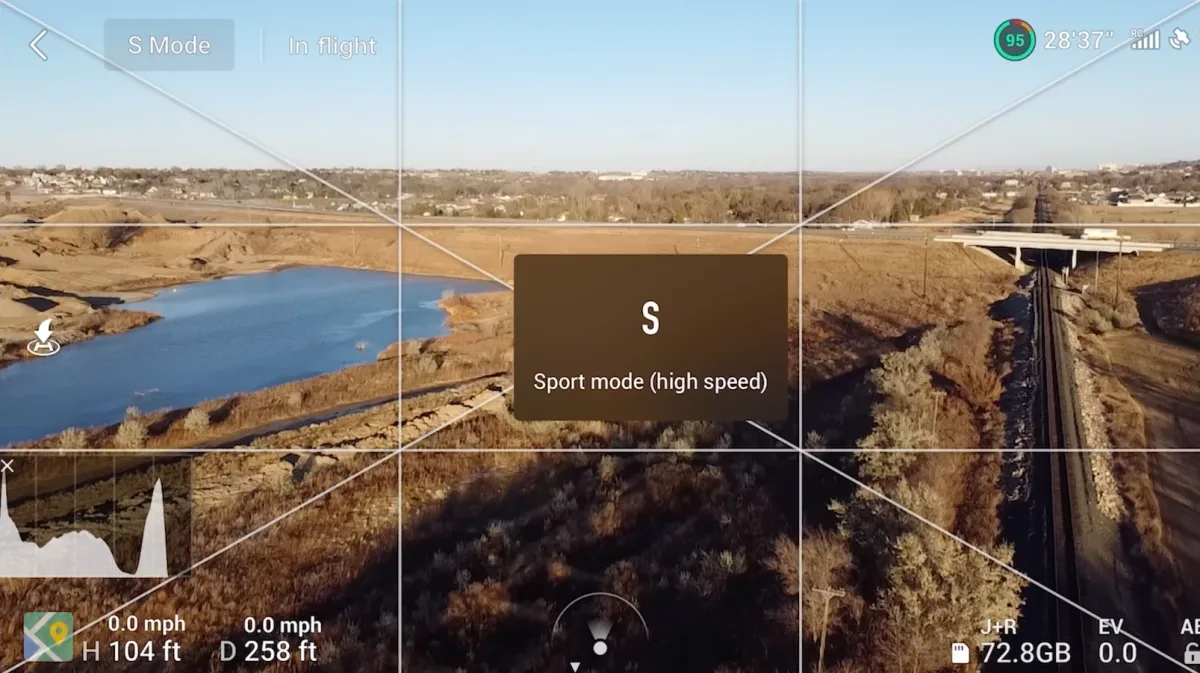
Sport mode (S): Top speed roughly doubles (up to 19 m/s on Mini 4 Pro, 21 m/s on Air 3S). Obstacle avoidance turns off. For experienced pilots in open areas.
Tapping the mode indicator cycles Normal, Sport (shown), and Cine. Sport mode roughly doubles top speed and turns obstacle avoidance off.
Cine mode (C): Inputs are dampened for slow, smooth movements. Maximum speed drops to about 6 m/s. Designed for shooting video where sudden corrections would create jarring footage. For a fuller breakdown of when to use each, see our DJI flight modes guide.
Note: Sport mode disables obstacle avoidance automatically. The app does not warn you about this on every switch. Always check your surroundings before enabling it.
Exposure Controls and Camera Settings
Tap the camera icon on the right side to reveal the exposure panel. In Auto mode, the drone manages aperture (on drones with adjustable aperture), ISO, and shutter speed. In Pro mode, you control all three manually.
The quick-access camera bar at the bottom of this panel shows resolution and frame rate presets. Tap the current preset to change it, such as switching from 4K/30fps to 4K/60fps for action shots, or 4K/24fps for a more cinematic look.
DJI Fly QuickShots, MasterShots, and Hyperlapse
QuickShots: Six Automated Cinematic Moves
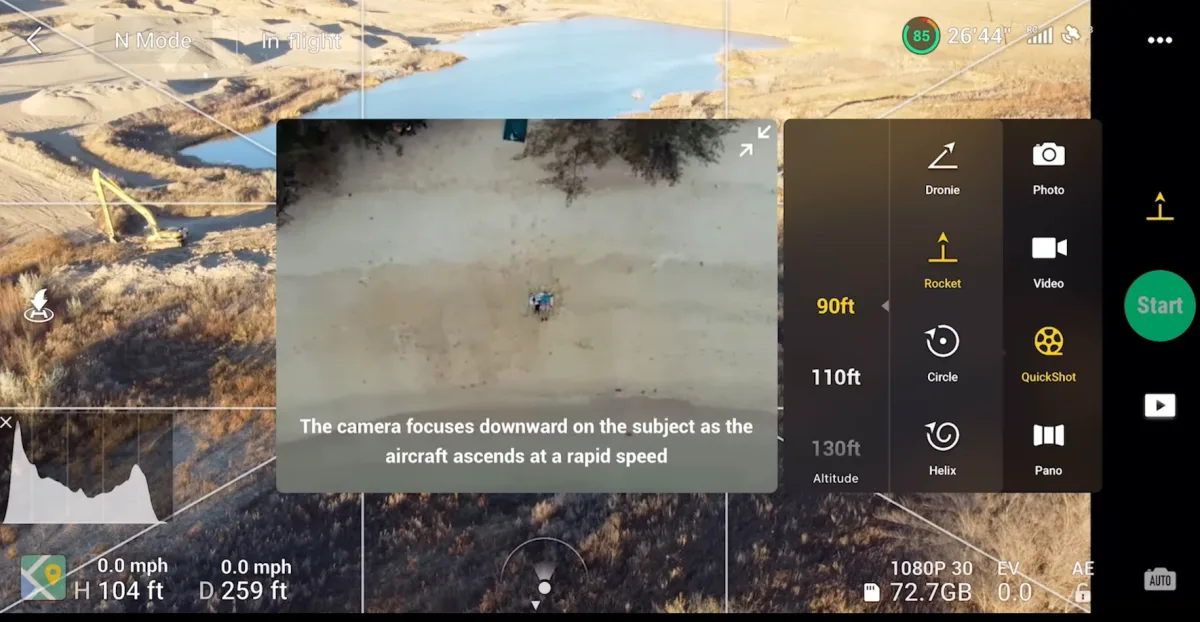
QuickShots are pre-programmed flight patterns that film a subject automatically. You select a subject by drawing a box around it on screen, choose a QuickShot type, set a distance, and tap Go. The drone handles the rest.
The QuickShots menu: pick a move, set an altitude, and tap Start. The drone flies the pattern and films it for you.
The six QuickShots available on most DJI Fly drones:
Dronie: Flies backward and upward while keeping the subject in frame. Good opening shot for revealing surroundings.
Helix: Spirals upward while orbiting the subject. Works well over single objects like a car or building.
Rocket: Flies straight up with the camera pointing straight down. Creates a bird's-eye reveal.
Boomerang: Sweeps in an ellipse around the subject, starting and ending at roughly the same point.
Asteroid: Flies backward and upward, then rotates to face backward, flies a sphere, and returns. Creates a dramatic reveal when reversed in editing.
Circle: Orbits the subject at a constant radius and altitude.
Tip: QuickShots need at least 8 meters of clear airspace in all directions. Run them in open fields, not near trees or buildings. The drone will abort the maneuver if it detects an obstacle mid-flight.
MasterShots: Automated Multi-Shot Sequence
MasterShots combines several shots into a single automated sequence. You select a subject, set a maximum distance, and the drone films 10-12 different angles and movements automatically. DJI's app then edits them into a short video with music, stored in your phone's gallery.
MasterShots is better suited to standalone subjects: a car, a landmark, a person standing still. It works poorly when the environment is complex or the subject is moving. The edit it produces is a starting point, not a finished product.
Hyperlapse Modes
Hyperlapse shoots a series of photos at set intervals and compiles them into a sped-up video. Four Hyperlapse modes in DJI Fly:
Free: Fly wherever you want while the drone shoots at intervals. Manual hyperlapse.
Circle: Orbits a point while shooting. Creates a smooth spinning hyperlapse.
Course Lock: Flies a straight path. Works well for tracking a road or coastline.
Waypoint: Follows a pre-set route. Repeatable; useful for comparing the same scene over time.
FocusTrack: ActiveTrack, Spotlight, and Point of Interest
FocusTrack is a separate intelligent mode from QuickShots. Where QuickShots run a fixed pre-programmed move, FocusTrack keeps the camera locked on a subject continuously while you fly wherever you want. Access it by drawing a selection box around a subject on screen; three tools appear at the bottom of the selection.
ActiveTrack: The drone follows the subject automatically, adjusting position and altitude to keep it in frame. Works with people, vehicles, and animals in motion. Obstacle avoidance stays active during tracking.
Spotlight: The camera stays locked on the subject but the drone does not move autonomously. You fly manually while the gimbal rotates to keep the subject centered. Good for orbiting a subject at custom speed and distance.
Point of Interest (POI): The drone orbits a GPS-defined point at a set radius, altitude, and speed. You tap a point on the map (or current drone position), set parameters, and the drone circles automatically. Useful for filming landmarks where you want a perfectly consistent orbit.
Tip: FocusTrack requires GPS lock and sufficient lighting for subject recognition. It works best outdoors with a clear sky. In low light or indoors, the subject detection fails and the mode reverts to manual.
DJI Fly Pro Mode and D-Log M Settings
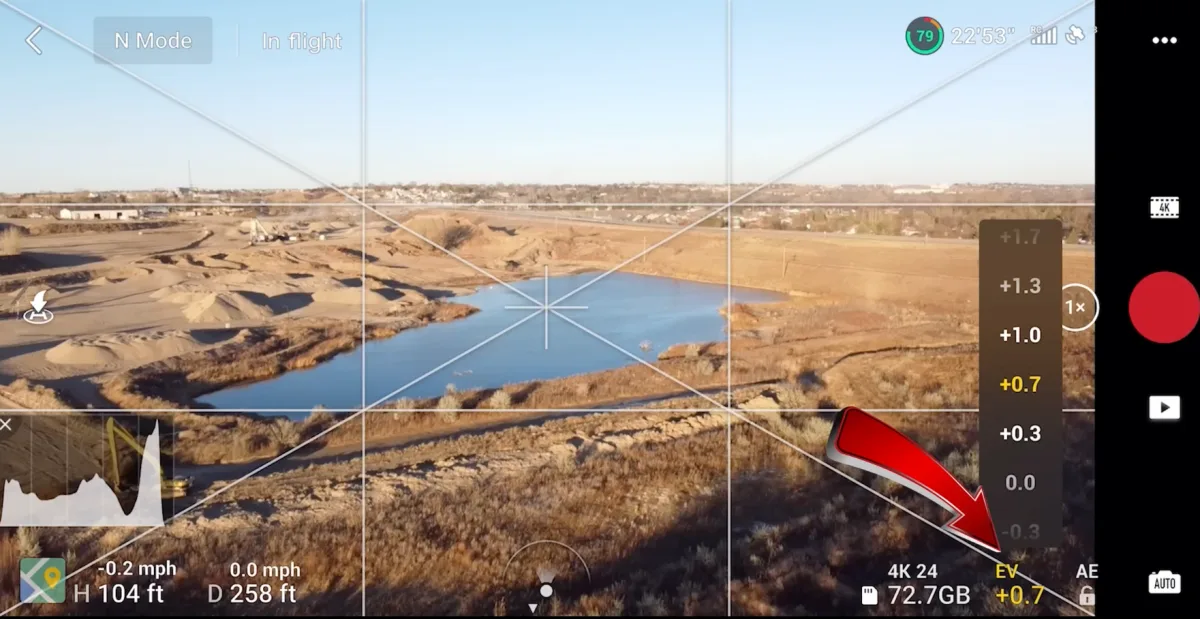
Pro mode unlocks manual exposure. Here the EV slider nudges exposure to +0.7 to brighten the shot.
How to Switch to Pro Mode
In the camera interface, tap the shooting mode selector (the icon to the right of the shutter button, labeled A for Auto). Swipe or scroll until you see Pro. Pro mode appears on all current DJI Fly drones. It applies to both photo and video shooting.
In Pro mode, the exposure panel expands to show:
EV (exposure value) - a quick offset knob if you want auto as a base
Shutter speed - manual entry, displayed as a fraction (1/500, 1/60, etc.)
ISO - 100 to 6400 depending on drone model
White Balance - manual Kelvin entry or presets (Sunny, Cloudy, Incandescent)
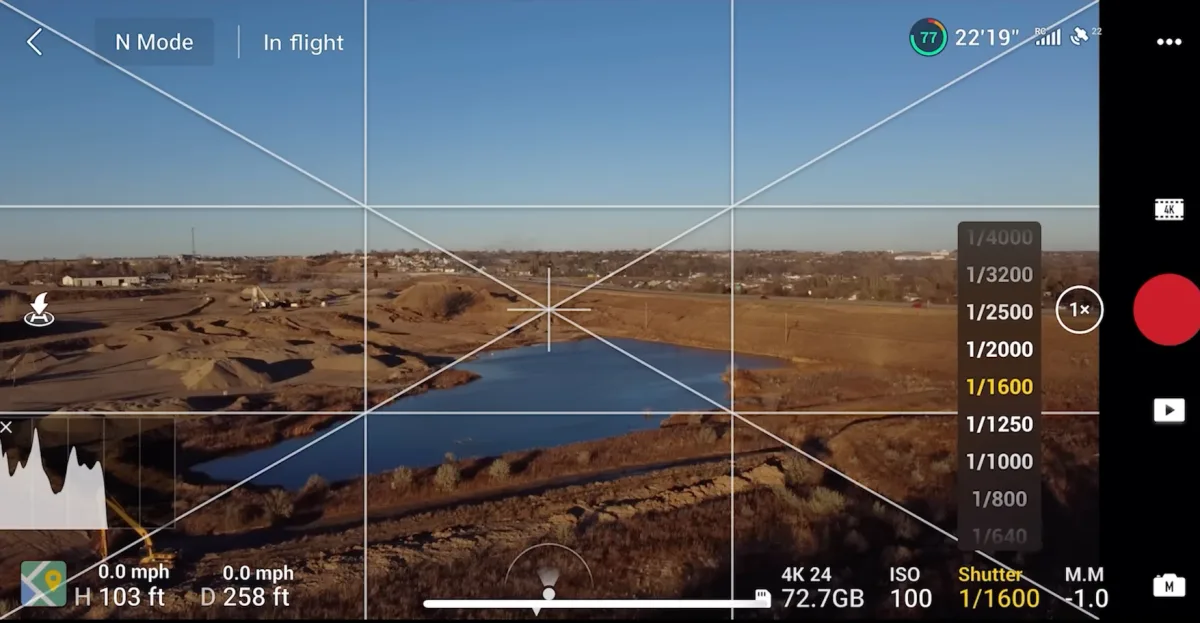
The 180-degree shutter rule: for natural motion blur in video, set shutter speed to double your frame rate. At 30fps, use 1/60. At 60fps, use 1/120. Without ND filters, this is only achievable in shade or overcast conditions.
The manual shutter selector in Pro mode. For natural motion blur, aim for roughly double your frame rate.
D-Log M and Color Profiles
D-Log M is DJI's flat log color profile. It compresses highlights and lifts shadows to preserve the widest possible dynamic range for color grading. Available on Mini 4 Pro, Mini 5 Pro, Air 3, Air 3S, Mavic 3 series, and Mavic 4 Pro. Not available on Mini 3, Mini 3 Pro, or older sub-$500 models.
To enable D-Log M: in the camera settings panel, scroll to Color. Switch from Normal to D-Log M. The live feed will look flat and desaturated on screen. That's correct. It's designed for post-processing in Lightroom, DaVinci Resolve, or Premiere.
Two other color profiles you'll see in DJI Fly:
Normal (D-Color): DJI's standard color. Good contrast, slightly warm. Ready to post without grading.
HLG (Hybrid Log-Gamma): Designed for HDR displays. Wide dynamic range with less extreme grading required vs D-Log M. Available on higher-end models.
Recommended Settings for Video
A useful starting setup for most video shoots: 4K at 30fps, Pro mode, ISO 100, shutter speed 1/60 (add ND8 or ND16 filter in bright light), white balance set to Kelvin around 5500 on a sunny day. Color profile Normal for immediate use, D-Log M if you plan to grade. Save a custom preset so you don't reset every flight.
DJI Fly Settings, Safety Features, and Troubleshooting
Safety Settings Worth Configuring Before Every First Flight
Tap the three-dot gear icon in the top right of the camera screen to open the main settings. Safety settings live under the Safety tab:
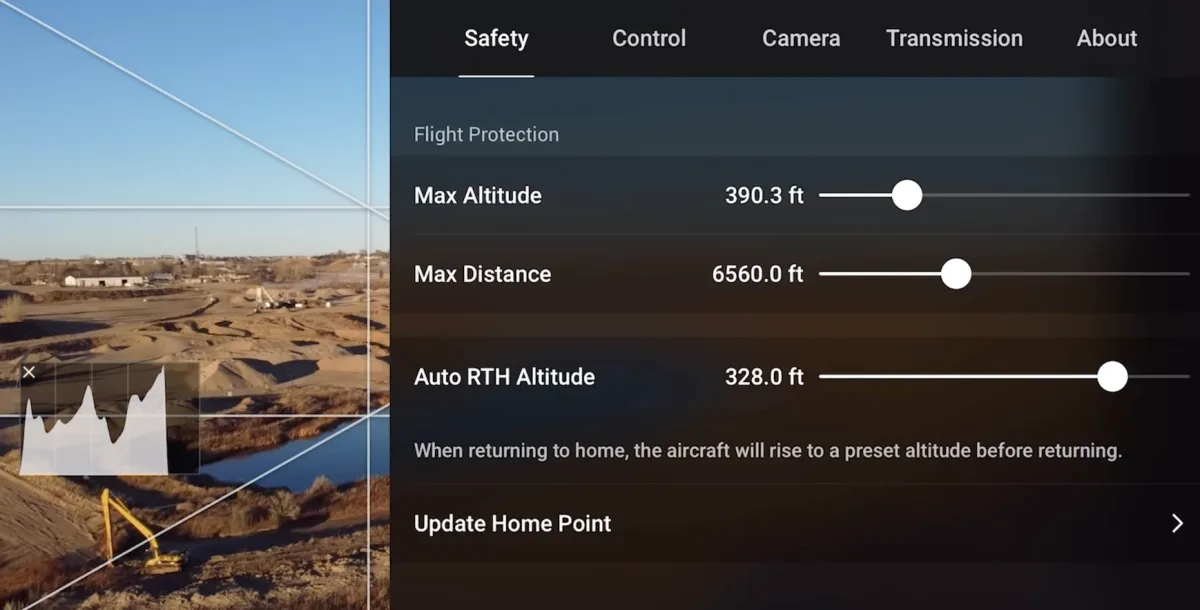
Return to Home Altitude: Sets how high the drone climbs before flying home. Default is 30 meters. Raise this to clear any obstacles between your drone and home point. Set it to at least the height of the tallest object in the area.
Max Flight Altitude: FAA limit for recreational pilots is 400 feet AGL (about 122 meters). DJI Fly defaults to 120 meters but can be adjusted. Part 107 pilots can unlock higher limits.
Max Flight Distance: Can be set to limit how far the drone goes. Useful when flying near sensitive areas or teaching new pilots.
Obstacle Avoidance: Three levels on supported drones: Bypass (drone tries to fly around), Brake (drone stops when it detects an obstacle), Off. Bypass is safest for most conditions. Off is for experienced pilots in constrained areas.
The Safety tab. Keep Max Altitude at or below the 400 ft (120 m) legal limit, and set RTH altitude above the tallest obstacle near your home point.
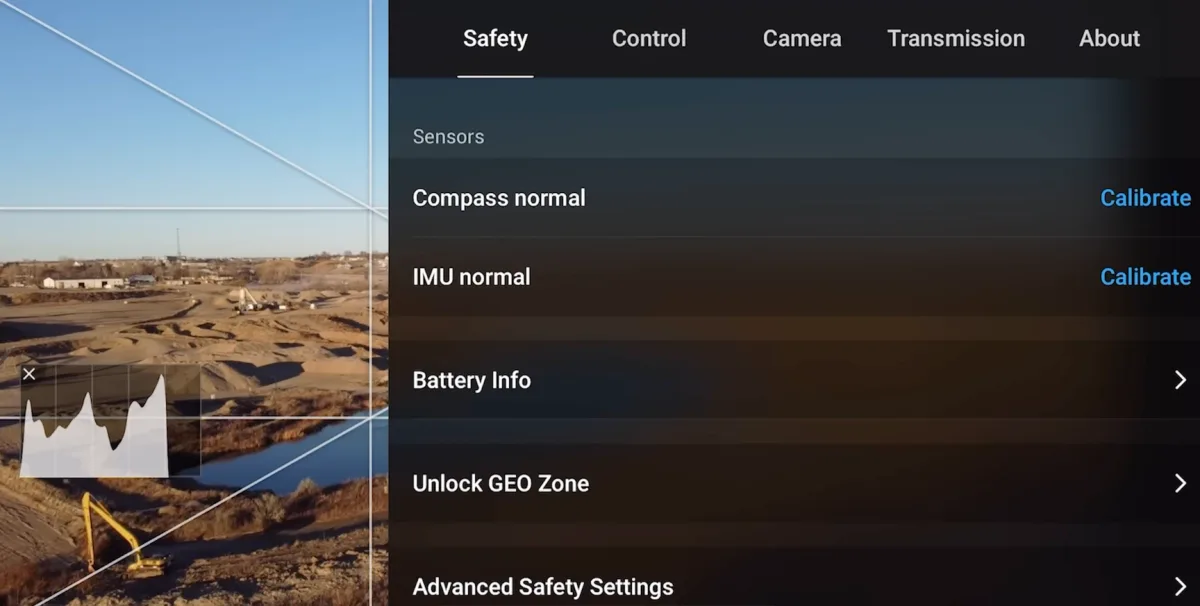
The same Safety tab also holds compass and IMU calibration (run these if the app ever flags a sensor), battery health, and the Unlock GEO Zone tool for flying in authorized restricted areas. If you have heard about DJI altitude or no-fly-zone hacks, see why you almost certainly do not need one in our DJI drone hacks guide.
Scroll the Safety tab for compass and IMU calibration, battery health, and the Unlock GEO Zone tool.
Firmware Updates in DJI Fly
When you connect your drone, DJI Fly checks for firmware updates automatically. A banner appears at the top of the screen if an update is available. Tap it to update wirelessly. The update downloads to your phone, then transfers to the drone over the RC connection. Takes 5-15 minutes. Do not disconnect during an update.
If the app and drone firmware are mismatched after a partial update, the drone may refuse to fly. In that case, use DJI Assistant 2 (Consumer Drones) on a desktop computer to restore firmware via USB.
Cache Management and App Performance
DJI Fly caches preview video from each flight session on your phone. Over time this can grow to several gigabytes. Clear it under Profile > Cache. Phones with less than 3GB free storage will see lag in the live feed and delayed map loading.
Tip: If DJI Fly freezes or shows a black camera feed on launch, clear the app cache first. This fixes about half of all DJI Fly performance complaints without any reinstall.
Built-In Video Editor
DJI Fly includes a lightweight video editor under the Album tab. Import clips directly from the drone's SD card or your phone's gallery, trim footage, assemble a basic timeline, and add music from DJI's royalty-free library or your own tracks. The editor exports directly to your camera roll for sharing to Instagram, TikTok, or YouTube without touching a desktop app.
The editor is not a replacement for DaVinci Resolve or Premiere. It has no color grade controls, no multi-track audio, and no motion graphics. For quick social media clips straight from the card, it works well. For anything that requires precise color work or complex cuts, pull the footage to a desktop workflow.
Flight Records and the DJI Fly Academy
All flights are logged under Profile > Flight Records. Each record shows GPS track, max altitude, max distance, flight duration, and video/photo count. DJI Fly also includes Academy: short tutorial missions that teach basic maneuvers using a simulated flight environment. Worth running through if you're new to flying or just picked up a model with different handling characteristics than your last drone.
FAQ
DJI Fly supports all DJI consumer drones released from 2019 onward, including the Mini series (Mini SE through Mini 5 Pro), Air series (Air 2S, Air 3, Air 3S), Mavic 3 series, Mavic 4 Pro, DJI Neo, Neo 2, and Flip. Older drones including the Phantom 4, Mavic Pro, Mavic 2, and Spark use DJI GO 4 instead.
Update through the App Store (iOS) or Google Play (Android) like any other app. When you connect your drone, DJI Fly will also prompt you to update drone firmware if a new version is available. Always update both the app and the drone firmware at the same time to avoid mismatches.
QuickShots are six automated flight patterns that film a subject without manual piloting. The six modes are Dronie (backward and upward), Helix (spiral orbit), Rocket (straight up), Boomerang (elliptical sweep), Asteroid (sphere reveal), and Circle (constant orbit). You select a subject on screen, choose a mode, and the drone films it automatically.
D-Log M is DJI's flat log color profile that preserves the widest dynamic range for post-production color grading. It is available on Mini 4 Pro, Mini 5 Pro, Air 3, Air 3S, and Mavic 3/4 series. Footage shot in D-Log M looks flat and desaturated on screen but retains more shadow and highlight detail for editing in Lightroom or Premiere.
A black camera screen usually means one of three things: the USB cable between your phone and controller isn't passing data (try a different cable), the DJI Fly app cache needs clearing (Profile > Cache > Clear), or the drone's camera is initializing after a cold start. If none of those fix it, force-close the app and reopen it while the drone is already powered on.
Go to the three-dot settings icon in the camera view, tap the Safety tab, and adjust the Return to Home altitude. Set it to at least the height of the tallest object between your drone and its home point. The default is 30 meters, which is too low for many locations with trees or buildings.
DJI GO 4 supports older DJI drones: Phantom 4, Mavic Pro, Mavic 2, Spark, and Inspire 1/2. DJI Fly supports all consumer drones from the Mavic Mini (2019) onward. The two apps are not interchangeable. If you try to use DJI Fly with a Phantom 4, it won't recognize the drone.
MasterShots is an automated mode that films a subject from 10-12 different angles and movements in a single sequence, then edits them into a short video with music. You select a subject, set a distance, and the drone handles everything. It works best with standalone subjects like a car, landmark, or person in an open area.
DJI removed DJI Fly from the Google Play Store years ago and has not brought it back. DJI has never given an official reason, but it is widely attributed to Google policy friction. As a result, Android users have to download the app directly from DJI's website as an APK installer. iPhone users are unaffected, since DJI Fly is still on the Apple App Store.
Yes, as long as you download it only from DJI's official site at dji.com/downloads/djiapp/dji-fly. The APK from DJI is the genuine app. The risk comes from third-party mirror sites like Softonic or APKPure, which can serve outdated or tampered files. Since DJI Fly controls your drone, only ever install it from DJI directly.
No. Screen controllers like the DJI RC 2, RC Pro, and RC Pro 2 have DJI Fly built in, so you fly without a phone at all. Only the no-screen controllers, the RC-N3 and RC-N2, need your phone running DJI Fly.
Both the DJI Mini 5 Pro and the Mavic 4 Pro use DJI Fly, like every current consumer DJI drone. Use the picker above to confirm the app for any specific model. On Android, remember DJI Fly comes from DJI's site, not the Play Store.
Paul Posea founded Dronesgator in 2015 and has been reviewing consumer drones for over a decade. With 195 YouTube drone reviews drawing 3.55 million views and published work on Digital Photography School, he combines hands-on flight testing with data-driven analysis to help pilots find the right drone.
Marcus Taylor is a UK CAA certified drone pilot and owner of Deployed Consultancy Ltd. With 6 years of commercial experience spanning UN site surveys in West Africa, aerial photography across Europe, Africa, and Japan, and defence consulting, he verifies the technical accuracy of Dronesgator's drone reviews and guides.